
Complete Walkthrough
Ghost Financial User Guide
Your complete guide to managing your finances with Ghost Financial — Canada's all-in-one personal finance app. Every feature explained step-by-step with screenshots, tips, and detailed walkthroughs.
1. Getting Started
Ghost Financial is Canada's all-in-one personal finance app designed to give you a complete picture of your finances in one place. Whether you're tracking daily spending, planning a mortgage payoff, managing credit cards, or budgeting with your partner, this guide walks you through every feature.
1.1 Downloading the App
Ghost Financial is available on the Apple App Store for iPhone and iPad. The app requires iOS 17 or later.
- Open the App Store on your iPhone
- Search for "Ghost Financial"
- Tap "Get" to download (the app is free to download)
- Open the app once installed
1.2 Creating Your Account
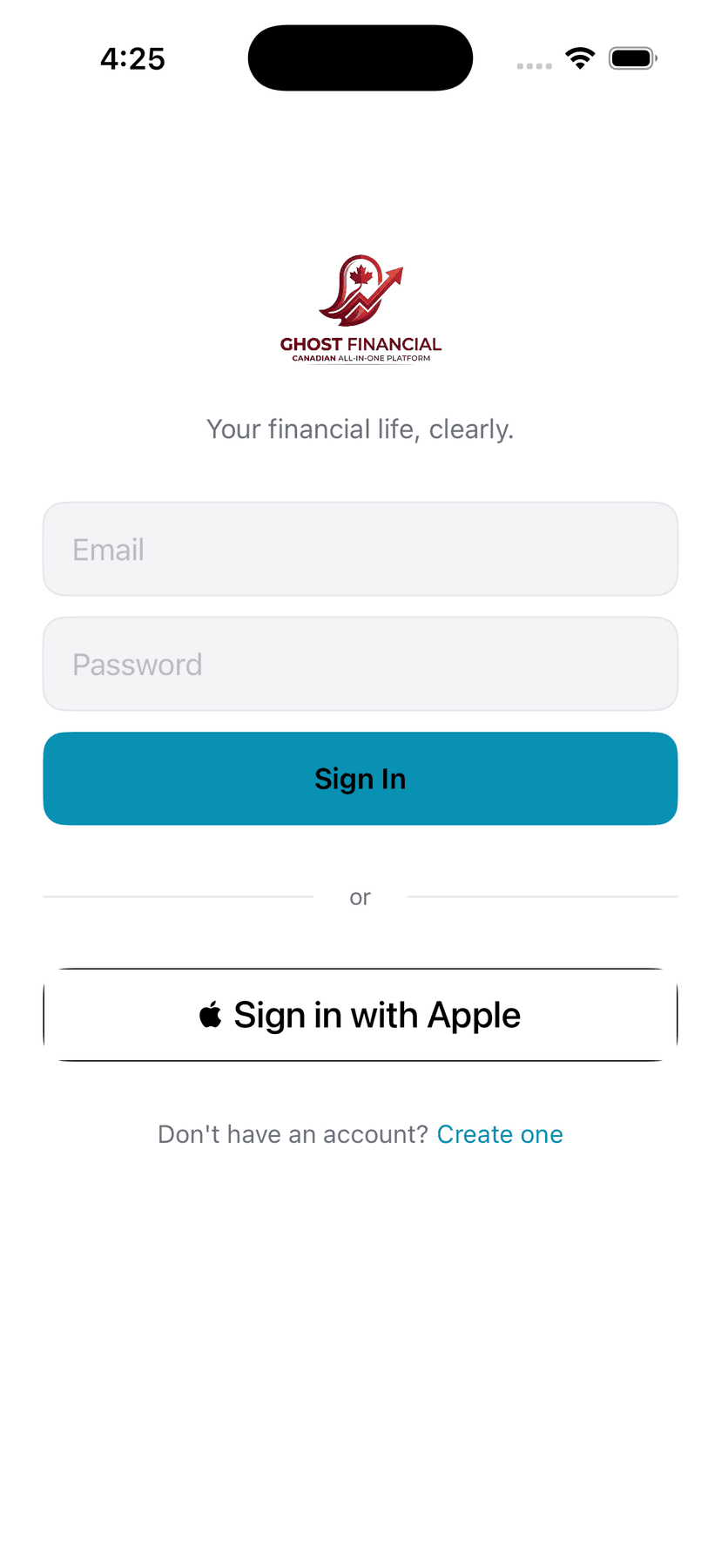
Choose Your Sign-In Method
Ghost Financial offers two ways to sign in: Sign in with Apple (recommended) or email/password. Sign in with Apple is the fastest and most secure — it uses your Apple ID's built-in security features including Face ID and two-factor authentication.
Tips
- ‣Sign in with Apple lets you hide your real email address if you prefer privacy
- ‣If you choose email/password, use a strong unique password
- ‣Your account is secured by Supabase Auth with encrypted password hashing
Complete Onboarding (4 Steps)
After signing in for the first time, you'll go through a quick onboarding flow: (1) Enter your first and last name, (2) Select your Canadian province (affects tax-related AI answers), (3) Choose your income range and pay frequency (weekly, bi-weekly, semi-monthly, or monthly). This information helps Ghost personalize your experience — your province and income power the Ghost Score and budget recommendations.
Tips
- ‣Your income is used for budget templates and Ghost Score calculations — be accurate
- ‣You can update all of this later in Settings > Profile
- ‣Province selection affects tax-related AI answers and loan scoring
Set Up Security (PIN & Biometrics)
During onboarding, Ghost requires you to set a 4-6 digit PIN. This PIN is your backup unlock method and is stored securely in the iOS Keychain. You'll also be prompted to enable Face ID or Touch ID (optional but recommended). Every time you open Ghost, biometrics are required first, then the PIN if biometrics fail.
Tips
- ‣PIN is mandatory for security — it protects your financial data
- ‣Face ID or Touch ID makes unlocking fast and convenient
- ‣If you forget your PIN, you can reset it by signing out and back in
Arrive at Home
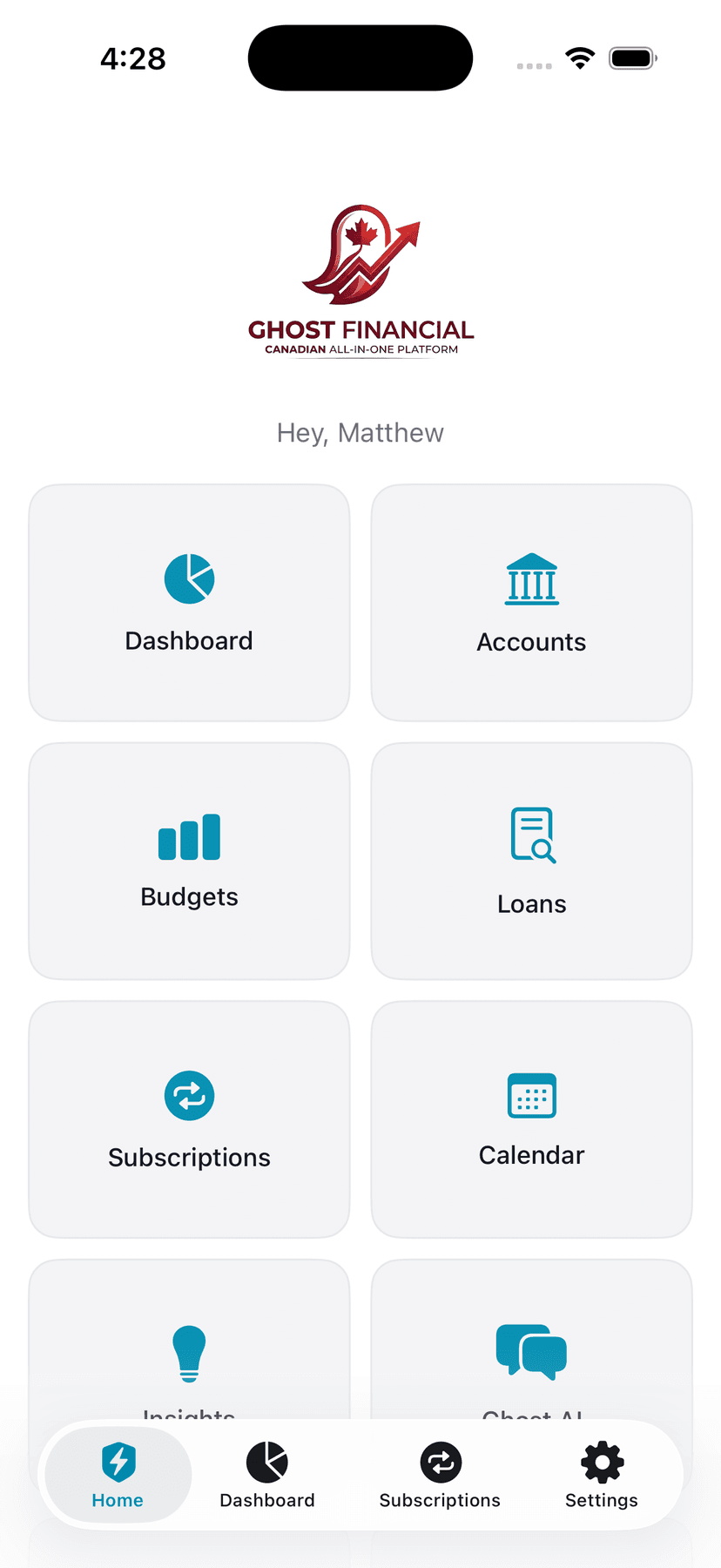
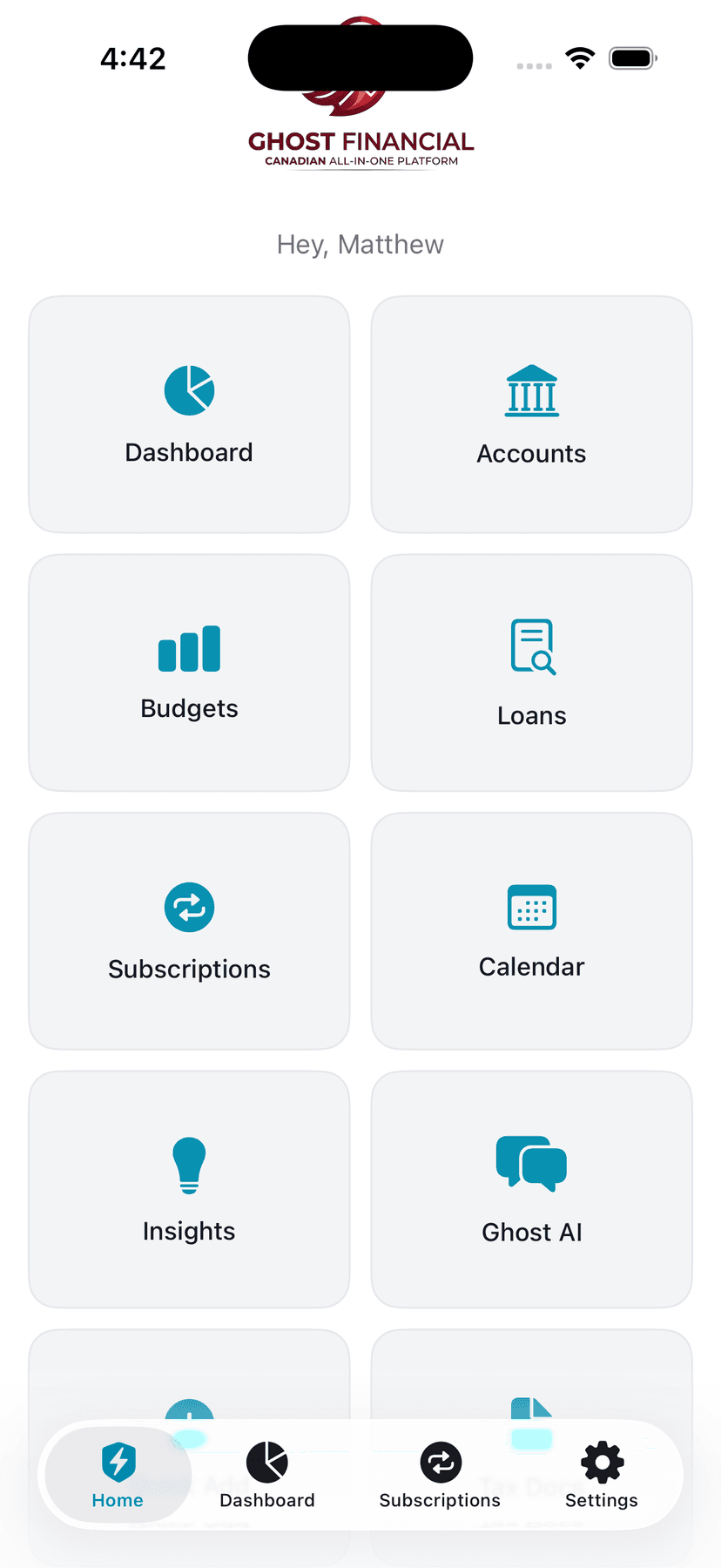
After onboarding completes, you land on the Home screen — your command center. You'll see the Ghost Financial logo, a personalized greeting (e.g., 'Hi Solomon'), and a grid of 18 feature tiles. The bottom tab bar provides quick access to Home, Dashboard, Savings, Subscriptions, and Settings.
1.3 Profile Completion Prompt
If you didn't complete your income and pay frequency during onboarding, a yellow banner appears on the Home screen: "Complete Your Profile". Tap it to set your income now — this is required for budget calculations, Ghost Score, and cash flow projections to work accurately.
What to Do First
We recommend setting up in this order: (1) Enable Face ID/Touch ID + PIN if you haven't, (2) Add your monthly income and pay frequency in Settings > Profile, (3) Create budgets using a template, (4) Link your bank via Accounts or import a CSV statement, (5) Explore Ghost AI with a question about your finances.
2. Home Screen
2.1 Header & Greeting
The Home screen begins with the Ghost Financial logo and a personalized greeting like "Good Morning, Solomon". Below that, if your income is not yet set, a prominent yellow "Complete Your Profile" banner appears (tap it to navigate to Settings > Profile).
2.2 Feature Grid (22 Tiles)
Navigating the Grid
The Home screen displays 22 features in a 2-column grid, organized into logical groups. Each tile has a colorful icon and label. Tap any tile to navigate to that feature.
Tips
- ‣The grid scrolls vertically — scroll down to see all 22 features
- ‣Features you use most often are also accessible from the bottom tab bar
- ‣Long-press any tile to see a tooltip with a brief description
Overview
Dashboard
Financial
Accounts, Transactions, Budgets, Credit Cards, Line of Credit, Loans, Recurring, Savings, Calendar, Quick Add
Intelligence
Insights, Ghost AI
Resources
News, Library, Tax Docs
Account & Tools
Import, Export, Family, Profile, Settings
New in this version
Three new tiles have been added: News (newspaper.fill), Profile (person.crop.circle.fill — goes directly to profile editing without going through Settings), and Line of Credit (arrow.left.arrow.right.circle.fill).
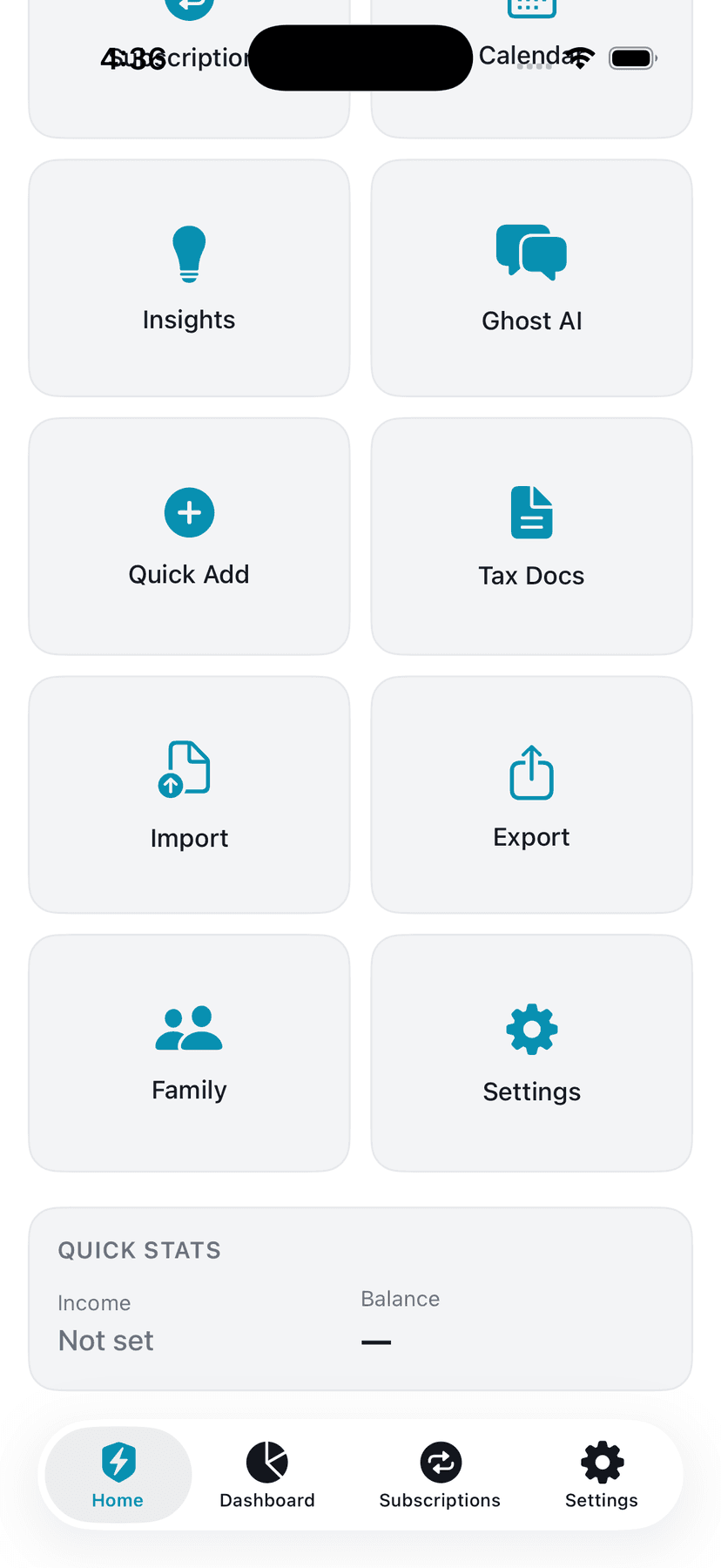
2.3 Quick Stats Card
Monthly Overview at a Glance
Scroll to the bottom of the Home screen to see your Quick Stats card. This shows four key numbers updated in real time: your monthly income (from your profile), total spent this month (from all transactions), bills paid this month (how many recurring payments have been charged vs total active), and your safe-to-spend amount (what you can still spend without going over budget or overdrafting).
Tips
- ‣Quick Stats pull data from Budgets, Recurring Payments, and linked bank accounts
- ‣If you haven't set your income yet, the income field will show $0 — set it in Settings > Profile
- ‣Safe-to-spend updates automatically as new transactions come in
- ‣Tap any stat card to navigate to that feature
2.4 Tab Bar
All 22 features are available in the tab bar. On iOS, the first 5 tabs appear in the bottom bar, and everything else goes into the "More" tab. You can rearrange which tabs appear in the bottom bar by tapping "Edit" in the More screen.
- Home — The feature grid and quick stats (the main hub)
- Dashboard — Net worth, budget health, account balances, recent transactions
- Savings — Savings goals, plan builder, affordability calculator, and progress tracking
- Recurring — All your recurring payments and price change alerts
- Settings — Profile, notifications, subscription management, legal, security, and account controls
- More — All remaining features: Accounts, Budgets, Credit Cards, Line of Credit, Loans, Calendar, Insights, Ghost AI, Transactions, Quick Add, Tax Docs, News, Library, Import, Export, Family, Profile
3. Dashboard & Net Worth
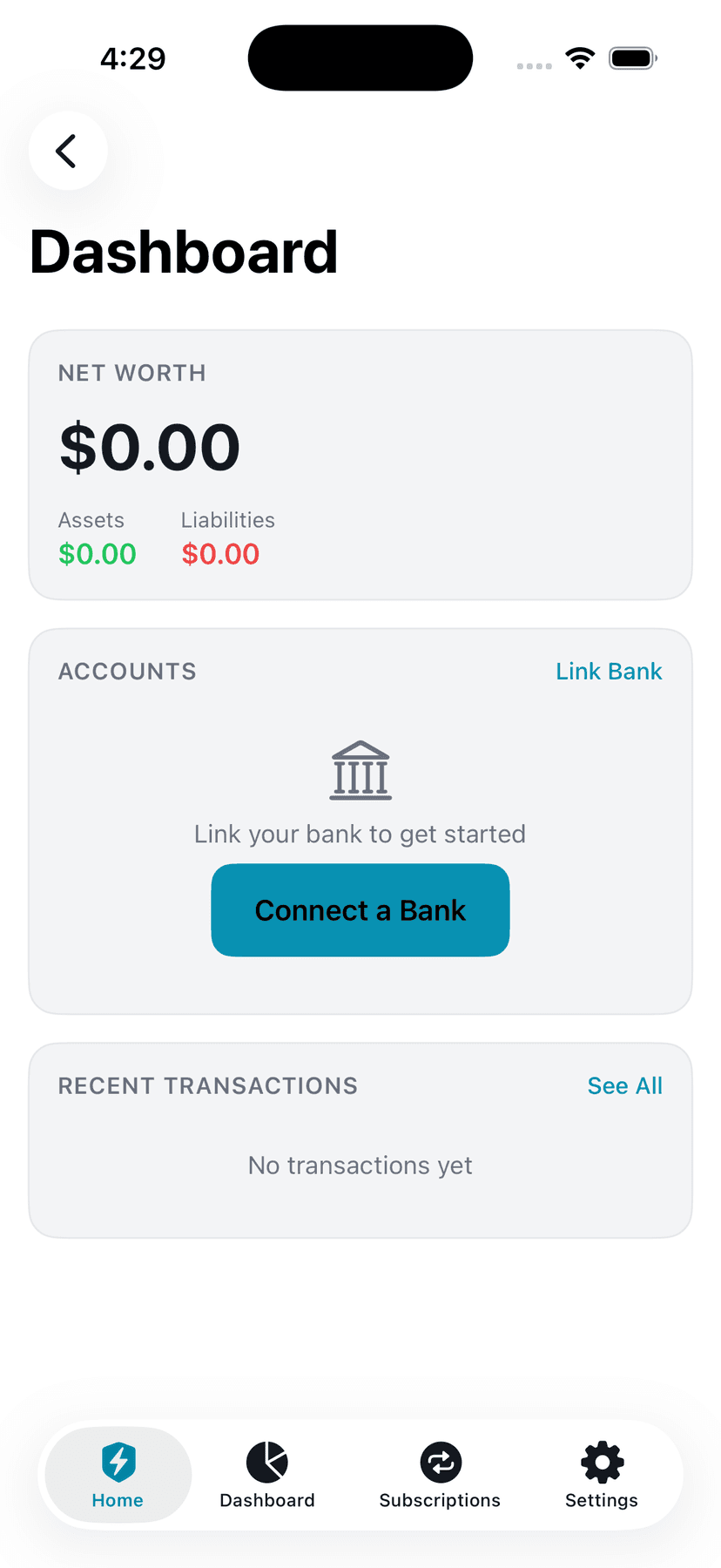
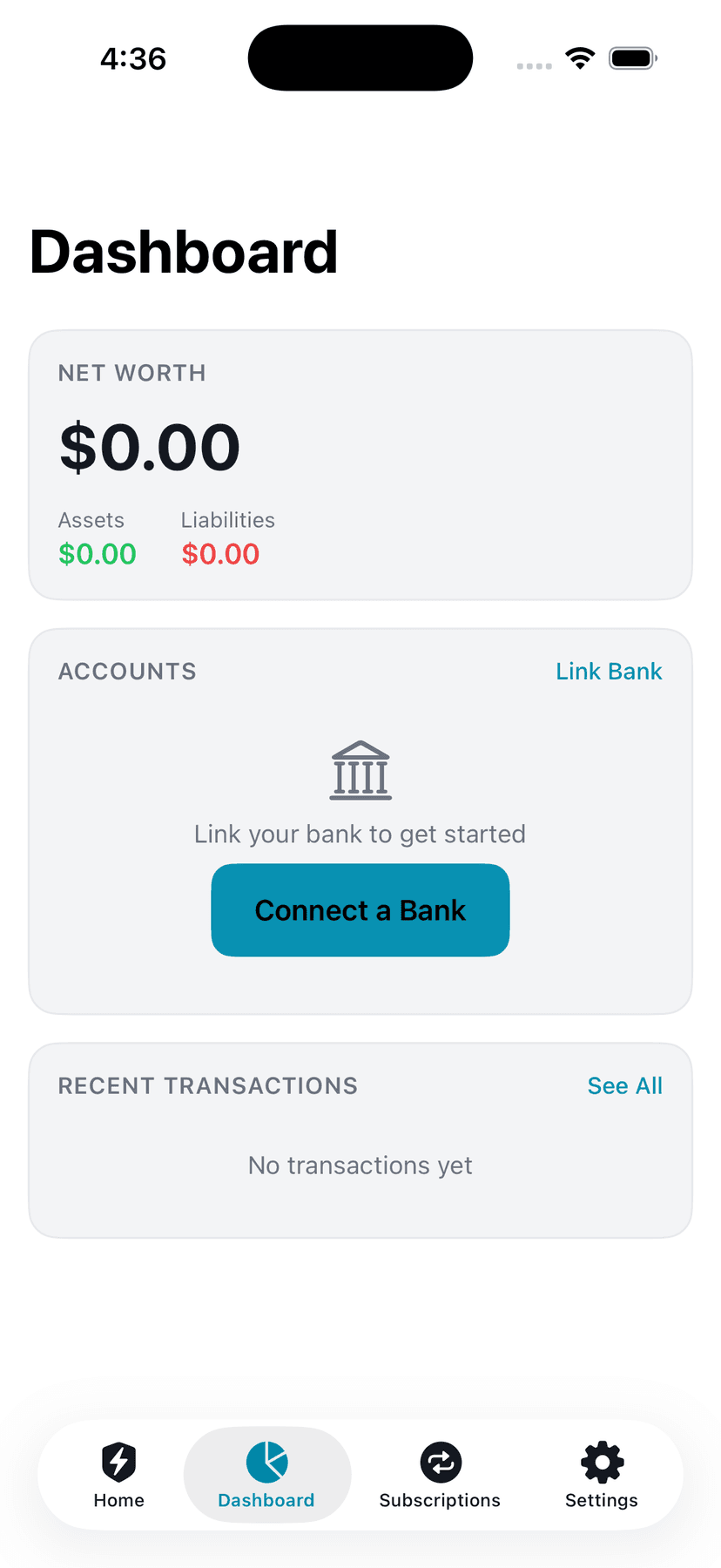
The Dashboard gives you a bird's-eye view of your entire financial picture — net worth, budget health, account balances, and recent transactions all in one scrollable view.
3.1 Net Worth
Understanding Your Net Worth
The top card shows your total net worth — the sum of all your assets minus all your liabilities. Assets include chequing accounts, savings accounts, TFSAs, RRSPs, FHSAs, and investment accounts. Liabilities include credit card balances, mortgages, HELOCs, car loans, and personal loans. The number updates every time you refresh your linked accounts.
Tips
- ‣Pull down anywhere on the Dashboard to refresh all account balances
- ‣Net worth is calculated from linked accounts only — manual accounts included too
- ‣A negative net worth is normal if you have a mortgage — it doesn't mean you're in trouble
- ‣Net worth changes over time as you pay down debt and build savings
3.2 Cash Flow Health Indicator
Below net worth, Ghost displays a cash flow health indicator showing three zones:
- Healthy — Income exceeds fixed bills by 20%+ (breathing room)
- Tight — Income exceeds fixed bills but by less than 20%
- Deficit — Fixed bills exceed income (structural problem requiring attention)
3.3 Budget Health Card
Safe-to-Spend on Dashboard
The Budget Health card shows your safe-to-spend amount, how much you've spent vs your total budget this month, a progress bar showing overall budget usage, and your daily spending pace. This card only appears if you have at least one budget set up. The safe-to-spend number is 'cash-flow aware' — it considers your actual bank balance, not just budget limits.
Tips
- ‣If you have linked bank accounts, safe-to-spend uses the LOWER of your budget remaining or your actual cash available
- ‣The daily pace shows how much you can spend per day for the rest of the month and stay on track
- ‣Green = on track, Yellow = watch it, Red = over budget
3.4 Accounts Overview
The Accounts card lists every linked and manual account with its current balance. Each account shows the institution name, account name, balance, and when it was last synced. Tap "Link Bank" to connect a new account via Plaid.
3.5 Recent Transactions
The bottom of the Dashboard shows your 5 most recent transactions with merchant name, category icon, and amount. Income transactions show in green, spending in the default color. This gives you a quick glance at recent activity without navigating to a full transaction list.
4. Bank Accounts
Ghost Financial connects to your Canadian bank accounts to automatically import transactions and track balances. Ghost has read-only access — we can see your accounts and transactions, but we can never move your money, make payments, or transfer funds.
4.1 Linking a Bank Account
Start the Connection
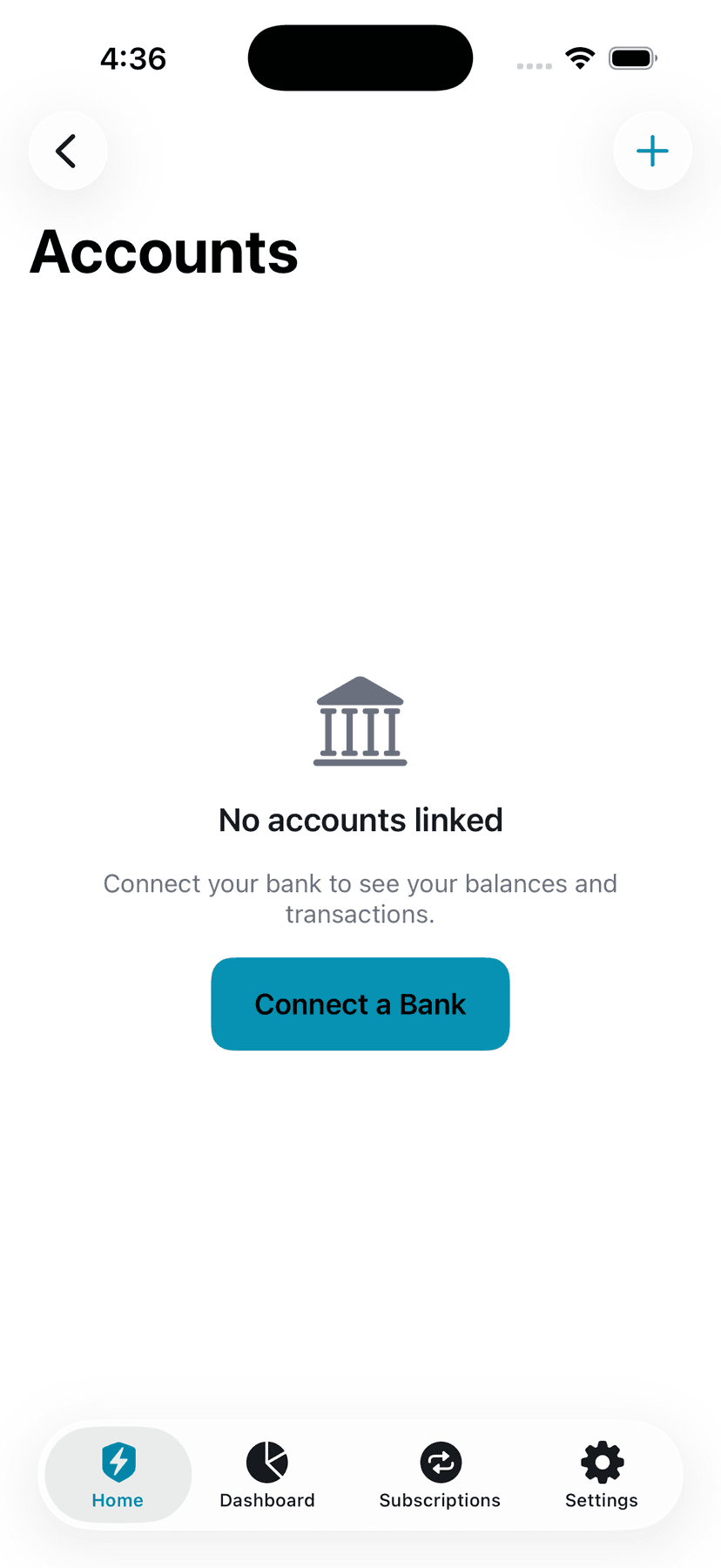
Navigate to Accounts (from Home grid or Dashboard). Tap 'Connect a Bank' or 'Link Bank'. This opens Plaid Link — a secure, industry-standard bank connection service used by thousands of financial apps including Venmo, Robinhood, and Wealthsimple.
Select Your Bank
Search for your bank in the Plaid interface. Ghost supports all major Canadian banks: TD, RBC, BMO, Scotiabank, CIBC, National Bank, Tangerine, EQ Bank, Desjardins, Simplii, and more. Select your bank and sign in with your online banking credentials.
Tips
- ‣Your banking credentials go directly to Plaid — Ghost never sees or stores them
- ‣You may need to complete your bank's two-factor authentication (text code, app notification)
- ‣The connection takes about 60 seconds
Choose Accounts
After signing in, Plaid shows you all available accounts (chequing, savings, credit cards, etc.). Select the accounts you want Ghost to track. You can select all of them or just specific ones. Tap 'Continue' to complete the connection.
Tips
- ‣You can link accounts from multiple banks — just repeat the process
- ‣Ghost automatically categorizes your account type (chequing, savings, credit card, etc.)
- ‣After linking, Ghost syncs your last 30 days of transactions automatically
Bank Connection Security
Your bank login credentials are handled entirely by Plaid. Ghost Financial never sees, stores, or has access to your banking username or password. Plaid uses bank-grade 256-bit encryption and is SOC 2 Type II certified. Over 12,000 financial institutions are supported across North America.
4.2 Manual Import (No Bank Linking Required)
Don't want to link your bank? No problem. Ghost offers two ways to import transactions manually:
CSV Import
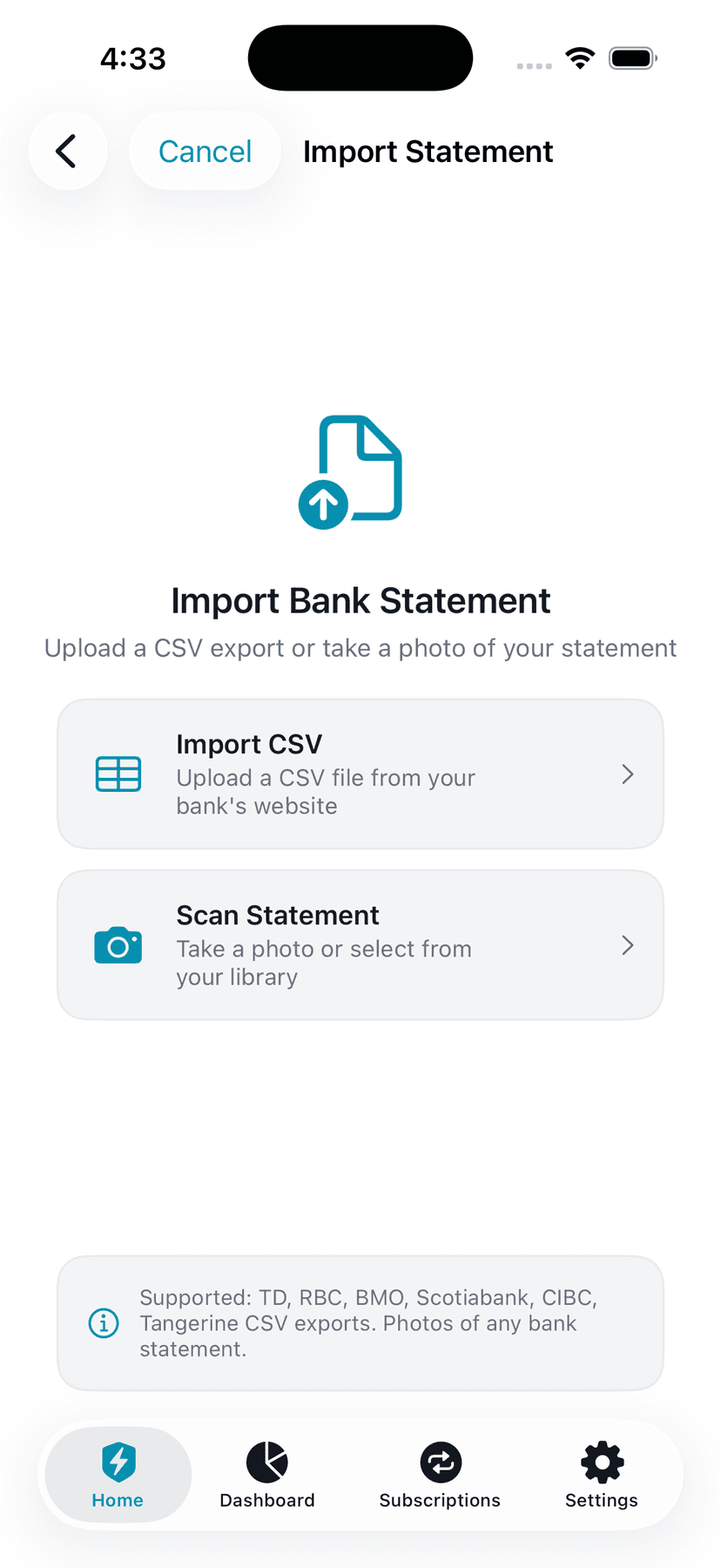
Download a CSV (spreadsheet) export from your bank's website. Most Canadian banks offer this under 'Download Transactions' or 'Export'. Then open Ghost, go to Import (from Home grid), tap 'Import CSV', and select the file. Ghost automatically detects the format (TD, RBC, BMO, Scotiabank, etc.) and imports all transactions with dates, amounts, and merchant names. Each transaction is auto-categorized (groceries, dining, transport, etc.).
Tips
- ‣TD exports as CSV from EasyWeb > Account Activity > Download
- ‣RBC exports from Online Banking > Account > Download Transactions
- ‣Most banks let you choose a date range — export at least 30 days
- ‣Ghost auto-detects column formats: date, description, amount (or separate debit/credit columns)
Photo/Screenshot Import
Take a photo of a paper bank statement or a screenshot of your banking app's transaction list. Go to Import > 'Scan Statement'. Ghost uses OCR (optical character recognition) to read the text, then sends it to Ghost AI to intelligently extract each transaction with date, merchant, and amount. Review the extracted transactions before importing.
Tips
- ‣Make sure the statement is well-lit and the text is clearly readable
- ‣Works with paper statements, PDF screenshots, and banking app screenshots
- ‣Ghost AI parses the statement — it handles various bank statement formats
- ‣You can review and remove any incorrectly parsed transactions before importing
Imported Transactions
Imported transactions are stored under a "Manual Import" account. They work exactly like bank-linked transactions — they feed into budgets, insights, spending analysis, and the Ghost Score. You can import as often as you like.
4.3 Refreshing Balances
Pull down on the Dashboard or Accounts screen to refresh all account balances and sync new transactions. Ghost shows when each account was last synced (e.g., "Updated 2h ago"). Balances are from your bank's last reported data — there may be a slight delay for pending transactions.
5. Budgets
Ghost's budgeting system is designed to be "cash-flow aware" — unlike most budget apps that only track spending against arbitrary limits, Ghost connects your budgets to your real bank balance and income. The result: a safe-to-spend number that reflects what you can actually afford to spend, not just what you planned to spend.
5.1 Budget Overview
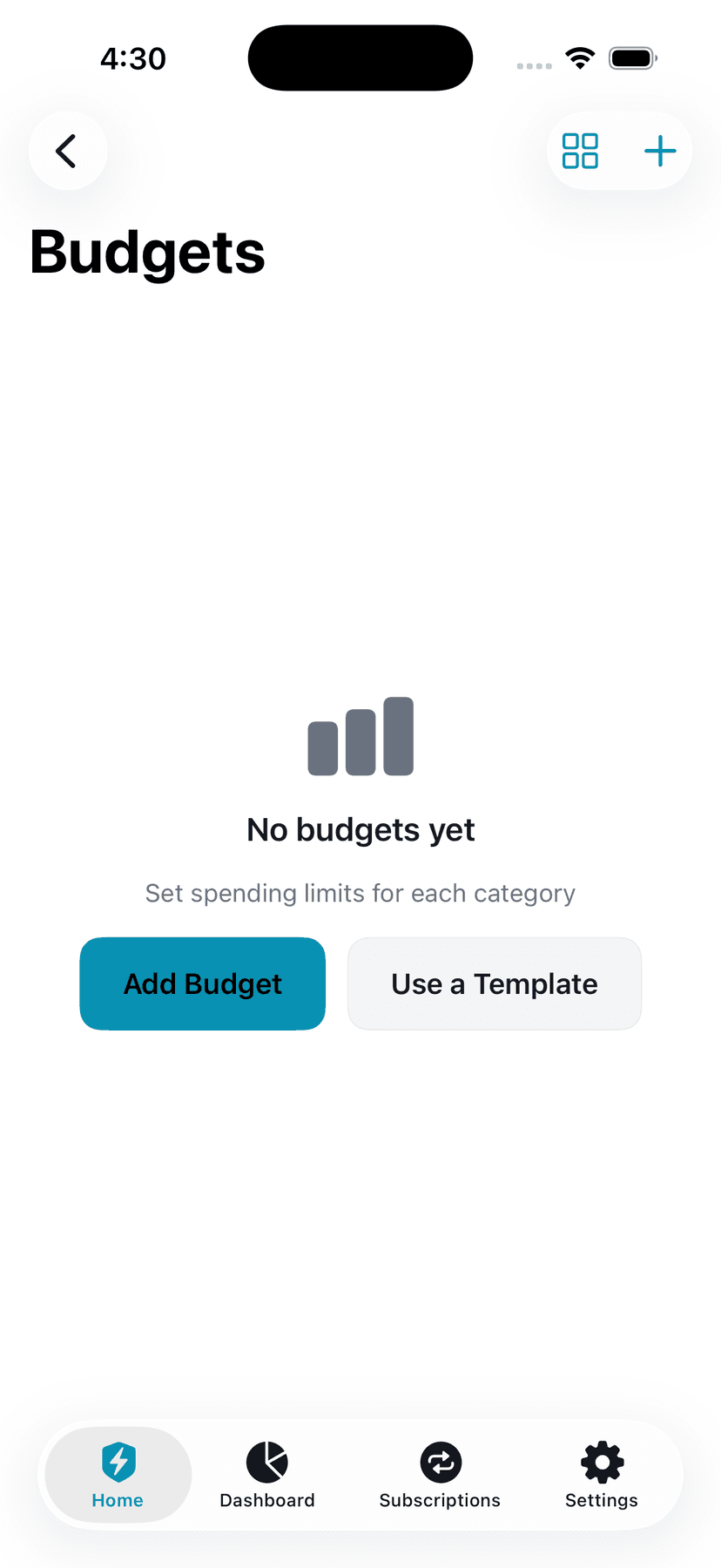
The Budget Screen
The main Budgets screen shows, from top to bottom: a month picker (navigate between months), a Cash Flow card (income vs fixed bills), the True Safe-to-Spend card, a Category Donut Chart showing where your money is going, a Monthly Overview with total budgeted vs spent, a Spending Heatmap calendar, and your individual budget categories grouped by type (Essentials, Lifestyle, Financial).
Tips
- ‣The Cash Flow card only appears if you've set your monthly income in Profile
- ‣Pull down to refresh spending data from your latest transactions
- ‣The donut chart only shows categories where you've actually spent money
5.2 Understanding Safe-to-Spend
Ghost calculates your safe-to-spend using a formula that considers multiple constraints:
Safe to Spend = minimum of:
1. Total Budget Remaining (budget limits - spent)
2. Unallocated Cash (bank balance - upcoming bills)
3. Income Remaining (income - spent) [if no bank linked]
The app tells you which constraint is binding: "Limited by your budget caps" (you have cash but your category budgets are the bottleneck), "Limited by your bank balance" (your budgets say you can spend more but your bank says otherwise), or "Limited by your income" (no linked accounts, using income as the ceiling).
Below the safe-to-spend number, you'll see a daily rate: how much you can spend per day for the remaining days in the month and stay on target.
5.3 Cash Flow Card
The Cash Flow card shows three numbers side by side: your monthly Income (green), your Fixed Bills (recurring payments normalized to monthly), and your Discretionaryincome (what's left after fixed bills). A health indicator tells you where you stand:
- Healthy — Income exceeds fixed bills by 20%+ (breathing room)
- Tight — Income exceeds fixed bills but by less than 20%
- Deficit — Fixed bills exceed income (structural problem)
5.4 Creating a Budget
Add a Budget Category
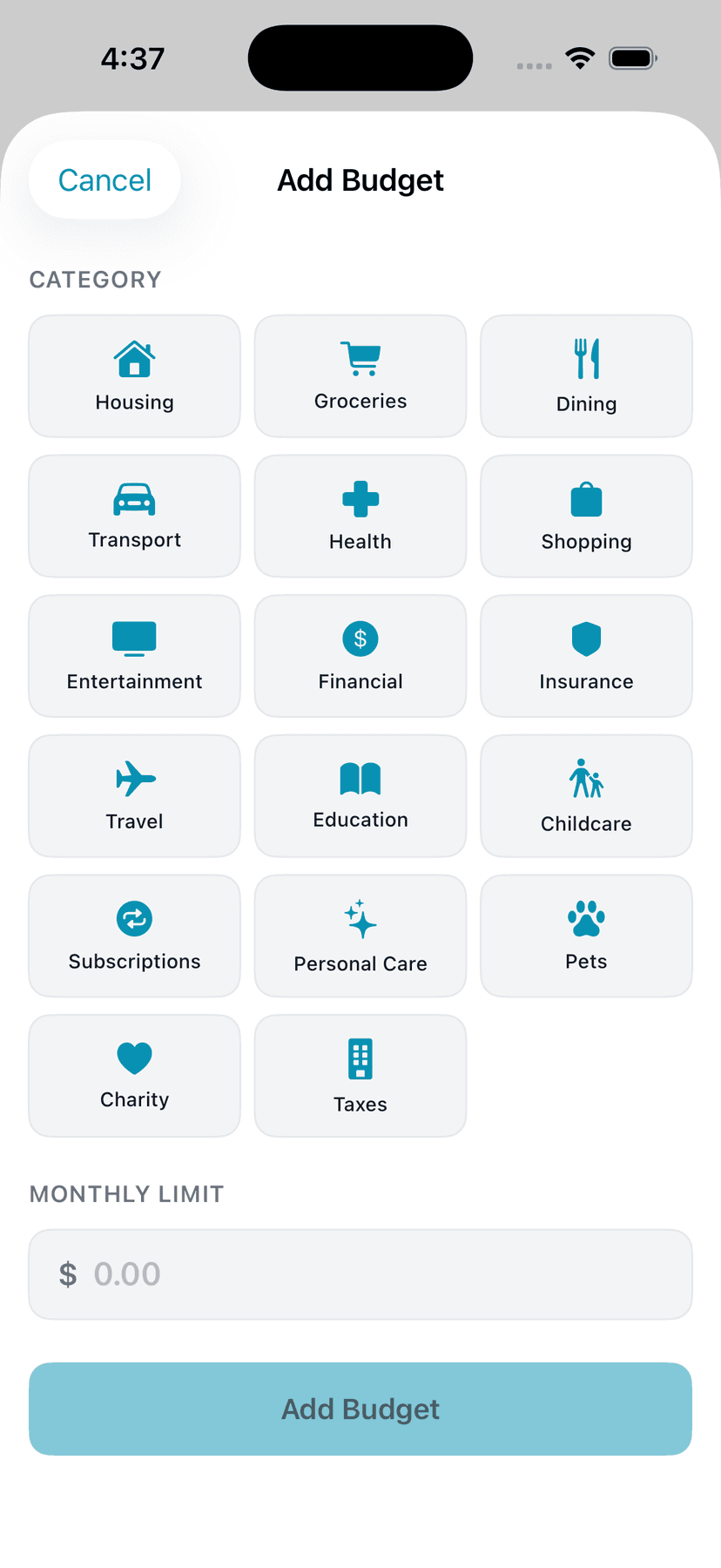
Tap the '+' button in the top right of the Budgets screen. You'll see a grid of available categories: Housing, Groceries, Dining, Transport, Health, Shopping, Entertainment, Insurance, Travel, Education, Childcare, Subscriptions, Personal Care, Pets, Charity, and Taxes. Categories you've already budgeted are hidden. Tap a category to select it.
Tips
- ‣Income, Transfers, and Uncategorized are excluded — they're not spending categories
- ‣If Ghost has 3+ months of your spending history, it will suggest an amount: "You averaged $X/mo — tap to use"
- ‣Start with your biggest spending categories first (housing, groceries, transport)
Set the Monthly Limit
Enter your monthly spending limit for this category. This is how much you want to allow yourself to spend per month. If Ghost has historical data from your transactions, you'll see a suggestion based on your 3-month average. Tap the suggestion to auto-fill, or enter your own amount. Tap 'Add Budget' to save.
Tips
- ‣Be realistic — setting limits too low leads to frustration and abandoned budgets
- ‣You can always adjust the limit later by tapping the category
- ‣If you're unsure, use the suggested amount or try a template
5.5 Budget Templates
Quick Setup with Templates
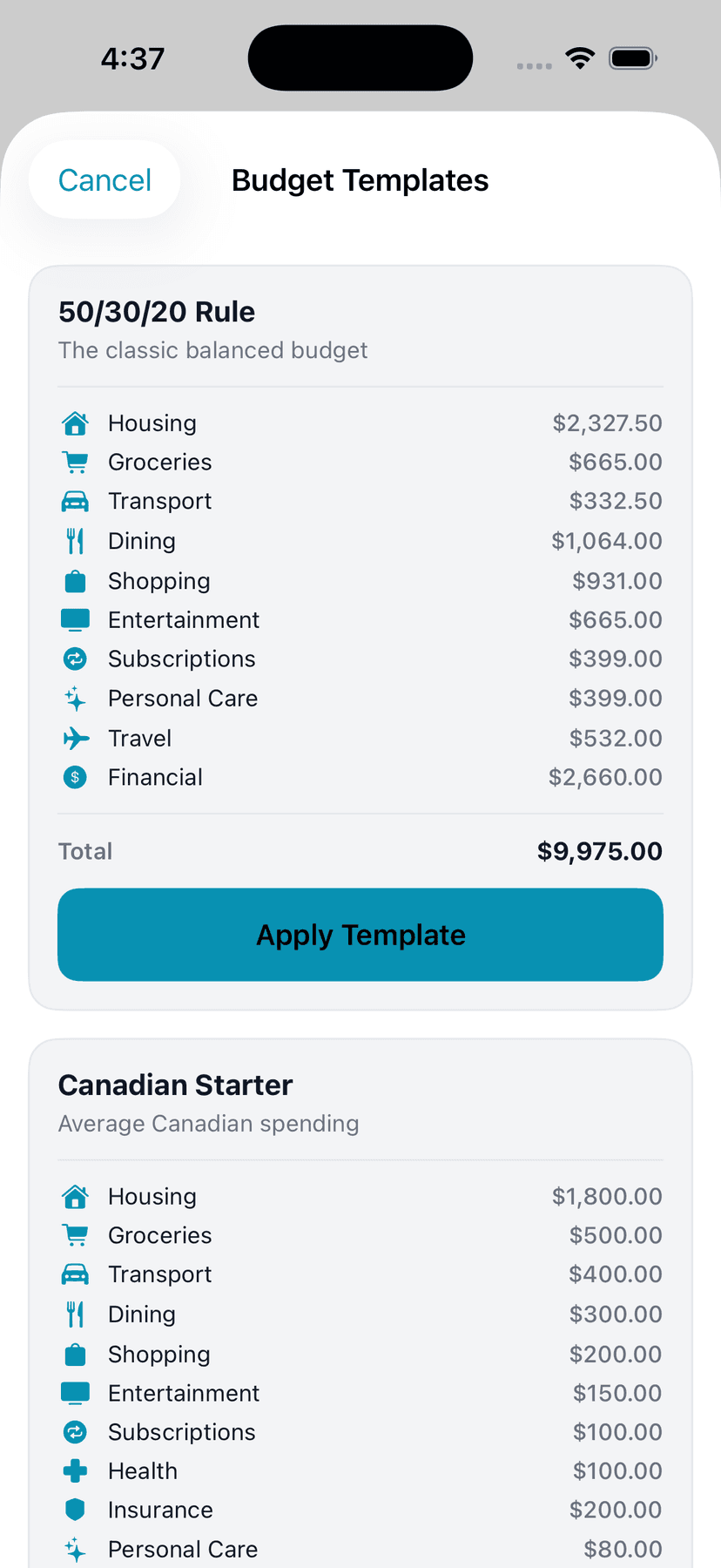
Don't want to set up each category manually? Tap the grid icon (left of the '+' button) to open Budget Templates. Choose from three pre-built templates that automatically create multiple budget categories scaled to your income:
50/30/20 Rule
The classic budgeting framework: 50% of income on Needs (housing, groceries, transport, health, insurance), 30% on Wants (dining, shopping, entertainment, travel), 20% on Savings/Financial goals. Ghost automatically calculates the dollar amounts based on your income.
Bare Bones
Minimal essentials: housing, groceries, transport, health, insurance. Good for building the foundation of your budget and adding discretionary categories later.
Custom
Start with a blank slate and manually select which categories to include. Pick exactly the categories you spend on and set custom limits for each.
Templates & Existing Budgets
When you apply a template, Ghost skips any category where you already have a budget. It won't overwrite your existing limits — it only fills in the gaps.
5.6 Reading Budget Progress
Each budget category shows several pieces of information:
- Category icon and name — e.g., the cart icon for Groceries
- Percentage or "Over by $X" — how much of your budget you've used, or how much you've exceeded it
- Progress bar with pacing marker — the colored bar shows how much you've spent. The yellow vertical line is the pacing marker — it shows where you should be based on the day of the month. If the bar is behind the yellow line, you're on track. If it's ahead, you're spending too fast.
- Spent of limit — e.g., "$342 of $500"
- Pace status — "On track", "Ahead of pace", or "Over budget"
- Rollover amount — if rollover is enabled, shows how much unused budget carried from last month
Progress bar colors: Green = under 75%, Yellow = 75-99%, Red= 100%+. When you go over budget, the bar extends with a red overflow section and shows "Over by $X" instead of a percentage.
5.7 Budget Detail View
Tap Into a Category
Tap any budget category to see its full detail view. The detail screen shows: a hero card with the exact amount spent, remaining budget, daily pace, and projected end-of-month spend. A circular gauge shows your progress visually (including overspend). Below that is a spending velocity chart — a line chart comparing your actual cumulative spending (colored line) against the ideal pace (dashed line) and your budget limit (red dashed line).
Tips
- ‣The velocity chart makes it instantly obvious if you're spending too fast
- ‣If your line crosses above the ideal pace line early in the month, consider cutting back
- ‣The chart updates in real-time as new transactions come in
Transaction List
Below the chart, you'll see every transaction in this category for the current month, grouped by day. Each transaction shows the merchant name (with an initial avatar), time, amount, and pending status. This answers the question 'Where did my Groceries money go?' at a glance.
Tips
- ‣Pending transactions appear with a yellow 'Pending' badge
- ‣Transactions are sorted newest first
- ‣This is the same data that feeds the velocity chart
Anomaly Alert
If you're spending 30%+ faster than your pace for this day of the month, Ghost shows a yellow warning card at the top of the detail view: 'Spending Alert — You've spent $X — that's 30%+ above pace for day Y. Consider reallocating from another category.'
5.8 Ghost Move (Budget Reallocation)
Moving Money Between Budgets
Life doesn't follow rigid categories. If you underspent on Entertainment but overspent on Groceries, use Ghost Move to reallocate money. From any budget detail view, tap the 'Ghost Move' card. Select the amount to move (with quick $25/$50/$100 buttons), pick the destination category, preview the changes to both budgets, and confirm. Both budget limits are updated instantly.
Tips
- ‣Ghost Move only adjusts your budget limits — it doesn't move real money
- ‣You can't move more than the source category's current limit
- ‣A preview card shows exactly what both budgets will look like after the move
- ‣This is inspired by YNAB's "Roll with the Punches" philosophy
5.9 Spending Heatmap
Daily Spending Calendar
The Spending Heatmap is a calendar-style grid showing every day of the current month. Each day is colored based on how much you spent: light/empty for low-spend days, yellow for moderate, and red for heavy spending days. Tap any day to see a breakdown of that day's transactions with merchant names and amounts. A legend at the bottom explains the color scale.
Tips
- ‣Future days appear faded — you can only tap days that have passed
- ‣The heatmap helps you identify spending patterns: do you spend more on weekends? Fridays?
- ‣A day with no spending shows as the default background color
5.10 Month Navigation
Viewing Previous Months
Use the left and right arrow buttons at the top of the Budgets screen to navigate between months. The current month is labeled with 'March 2026' (for example). When viewing a historical month, a 'Historical' label appears. All spending data, progress bars, and charts update to reflect the selected month's data. The forward arrow is disabled when you're already on the current month.
Tips
- ‣Historical months show the final state — all progress bars reflect end-of-month actuals
- ‣This lets you compare how you did month over month
- ‣Budget limits shown are from your current settings (not historical limits)
5.11 Editing & Deleting Budgets
To edit a budget's limit or enable rollover, long-press the category row and tap "Edit", or tap the slider icon in the budget detail toolbar. The edit sheet lets you change the monthly limit and toggle rollover (which carries unused budget from the previous month into the current month). To delete a budget, long-press and tap "Delete".
5.12 Category Donut Chart
The "Where It's Going" donut chart shows a visual breakdown of your spending across all budget categories. The center shows your total spent, and the ring is divided by category. A legend on the right lists the top 5 categories with their amounts. Categories with no spending are excluded.
5.13 Family Shared Budgets
Each budget has a privacy toggle. When enabled, the budget is visible to your family members. All family members' budgets contribute to the household's combined cash flow calculations. You can toggle sharing per budget — some can be private while others are shared.
5.14 Smart Advice Card
The Smart Advice Card appears at the bottom of your Budgets screen and analyzes your spending holistically:
- 50/30/20 Rule analysis — Compares your actual Needs / Wants / Savings breakdown against the 50/30/20 target percentages
- Budget vs. actual status — Overall summary of how you're tracking across all categories
- Over-budget category callouts — Specific categories where you've exceeded your limit are named and highlighted
- Current month pace check — Whether you're spending ahead of or behind the ideal daily pace for this point in the month
- Unbudgeted income gap — Identifies if a portion of your income has no budget assigned (money with no plan)
- Cash flow health advice — Tailored suggestions based on your current financial posture
Canadian tips included:the 50/30/20 rule as a starting framework, paying yourself first (automate savings on payday), tracking daily expenses (the average Canadian spends $200+ per month on coffee and lunches), and budgeting for annual costs that don't appear monthly (property tax, car registration, insurance renewals).
6. Savings Goals
Set savings goals, build realistic plans, and track your progress over time. The Savings feature connects to your budgets, income, expenses, and bank accounts to give you a complete picture of how fast you can reach any financial goal.
6.1 Creating a Savings Goal
Start a New Goal
From the Savings screen, tap the '+' button to create a goal. Enter a goal name (e.g., 'Emergency Fund', 'Vacation to Japan', 'New Car Down Payment'), choose a category (Emergency Fund, Travel, Vehicle, Home, Education, Tech & Gadgets, or create a custom category), enter your target amount, select a target date (optional), and choose your savings strategy (Aggressive, Moderate, or Relaxed). Tap 'Create Goal' to save.
Tips
- ‣Target date is optional — Ghost will show estimated completion based on your savings rate
- ‣Categories help you organize goals visually
- ‣You can edit a goal anytime to adjust the target or deadline
6.2 Savings Goal Detail View
Each goal shows: a progress bar with percentage complete, amount saved vs target, target date, monthly savings amount, projected completion date, and a savings trajectory graph. The graph compares your actual savings progress (colored line) to your projected savings (dashed line) over the next 12 months. Tap any goal to see this full detail view.
6.3 Plan Builder
The Plan Builder shows you three savings scenarios based on your actual financial data:
- Aggressive (30%) — Save 30% of disposable income. Shows specific category cuts (e.g., cut dining by 50%, shopping by 50%).
- Moderate (20%) — Save 20% of disposable income. Balanced cuts across discretionary categories.
- Relaxed (10%) — Save 10% of disposable income. Minimal lifestyle impact.
Each plan shows the monthly savings amount, timeline in months, estimated completion date, and a detailed breakdown of which spending categories to reduce and by how much — all based on your real spending data.
6.4 Budget Linking
Optionally "activate" a savings plan to automatically adjust your budget limits. For example, if the Aggressive plan suggests cutting dining by $150/month, activating it will reduce your Dining budget by that amount. You can deactivate at any time to restore your original budgets. By default, goals are projection-only — budget linking is opt-in per goal.
6.5 Can I Afford It?
Enter any price tag and Ghost shows you the full financial impact: whether you can afford it today, your cash position after the purchase plus upcoming bills, how it delays each of your savings goals, which budget categories would be affected, and your remaining income this month. This isn't a simple yes/no — it's a complete ripple-effect analysis across your entire financial picture.
6.6 Overall Savings Health
At the top of the Savings screen, Ghost shows your overall savings health: how much you've saved this month (income minus spending, auto-calculated), your savings rate as a percentage, designated savings account balances, and total progress toward all active goals.
6.7 Smart Advice Card
The Smart Advice Card at the bottom of the Savings screen gives personalized guidance based on your actual savings data:
- Savings rate assessment — Excellent (20%+), Good (10–20%), or Needs Improvement (under 10%)
- Emergency fund check — Whether you have 3–6 months of expenses covered (the standard Canadian recommendation)
- Goal progress highlights — Motivational callouts for goals that are ahead of schedule or nearly complete
- Completed goals celebration — Recognizes when you've hit a savings milestone
- Savings momentum tracking — Whether your savings rate is improving, steady, or declining month over month
Canadian tax-smart tips included:maximize your TFSA first ($7,000/year limit in 2025 — tax-free growth and withdrawals), contribute to your RRSP for a tax deduction (reduces taxable income), use the FHSA if you're a first-time buyer ($8,000/year, tax-deductible contributions and tax-free withdrawals for a home purchase), consider high-interest online banks for your savings (EQ Bank and Tangerine consistently offer top rates), GIC laddering for guaranteed returns, and setting up automatic transfers on payday before you can spend the money.
7. Credit Cards & Lines of Credit
Track all your credit cards in one place. Add cards, monitor utilization, track due dates, and monitor for rewards. Ghost makes it easy to see your total credit limit and combined balance at a glance.
7.1 Adding a Credit Card
Add Your First Card
From the Credit Cards screen, tap the '+' button. Enter the cardholder name, card issuer (Visa, Mastercard, Amex, etc.), last 4 digits of the card number, current balance, credit limit, annual interest rate, due date (day of month), rewards type (Cash Back, Travel Points, Aeroplan, Scene+, PC Optimum, etc.), and annual fee (if any). Tap 'Add Card' to save.
Tips
- ‣The last 4 digits are for identification only — Ghost doesn't store your full card number
- ‣Rewards type helps Ghost categorize your benefits
- ‣Annual fee is optional — leave at $0 if your card has no fee
7.2 Credit Card Overview Card
At the top of the Credit Cards screen, Ghost displays an overview card with: your combined credit limit across all cards, combined current balance, and your overall utilization percentage. The utilization bar is color-coded:
- Green (<30%) — Excellent utilization (shows good credit health)
- Yellow (30-70%) — Moderate utilization (acceptable but watch it)
- Red (>70%) — High utilization (may impact credit score)
7.3 Individual Card Details
Each card shows: issuer name, last 4 digits, current balance, credit limit, due date, rewards type, annual fee, and an individual utilization bar. The utilization bar uses the same color coding (green/yellow/red) based on the card's specific utilization percentage.
7.4 Making a Credit Card Payment
Open the Payment Screen
There are two ways to record a credit card payment: (1) Tap the '$' icon in the top-right toolbar of the Credit Cards screen to open the payment form, or (2) Long-press any card and select 'Make Payment' from the context menu — this pre-selects that card.
Tips
- ‣The toolbar $ button lets you pick any card from a dropdown
- ‣The context menu option pre-selects the card you long-pressed
Select Card & Enter Amount
Choose a card from the dropdown (auto-populated with all your active cards). Ghost shows the card's current balance and minimum payment due. Use the quick-amount buttons — 'Minimum' (pays the minimum due), 'Full Balance' (pays off the entire card), or '50%' (pays half). Or type a custom amount.
Tips
- ‣Quick-amount buttons save time for common payment scenarios
- ‣The minimum payment amount comes from what you entered when adding the card
- ‣You can pick the payment date (defaults to today)
Review & Submit
Before submitting, Ghost shows a 'New Balance' preview — the card balance after the payment. If you're paying the full balance, you'll see a green 'Paid in Full' checkmark. Tap 'Record Payment' to confirm. Ghost does two things automatically: (1) creates a transaction in your Transactions list (category: Financial, merchant: '[Card Name] Payment'), and (2) updates the card's balance.
Tips
- ‣The payment appears in your Transactions list immediately
- ‣Your card balance updates in real-time
- ‣Family members will see the updated balance
- ‣The transaction is categorized as FINANCIAL so it shows in budget tracking
7.5 Editing & Deleting Cards
Long-press any card to see a context menu with three options: Edit (update the card's name, issuer, last 4 digits, balance, limit, interest rate, minimum payment, or annual fee), Make Payment (record a payment against the card), and Delete (permanently remove the card). All changes sync to family members immediately.
7.6 Family Shared Cards
Credit cards are automatically visible to all family members in a household. When you add a card, your family members see it on their Credit Cards screen. This helps partners stay aware of household credit utilization and debt. When you make a payment, the updated balance is visible to all family members. Card editing and payment recording is available to the card owner.
7.7 Smart Advice Card
At the bottom of the credit cards list, Ghost displays a Smart Advice Card with dynamic advice based on your actual card data:
- Overall utilization status — Green (under 10%), Good (under 30%), Warning (30–50%), High (50–70%), Critical (70%+)
- The 30% Rule — Explanation of why keeping utilization under 30% protects your credit score
- Per-card warnings — Specific cards over 30% or over limit are called out by name
- Highest interest card — Identifies your most expensive card and recommends the avalanche method (pay highest rate first)
- Minimum payment warning — Shows the combined total of all minimum payments due
Quick Tips (Canadian-specific):pay your statement balance in full each month, set up autopay for at least the minimum, request credit limit increases to lower utilization, don't close old cards (keeps your credit history length), and space out credit applications (each hard inquiry affects your score).
Over-Limit Cards
Cards where the balance exceeds the credit limit now show "Over limit!" in bold red instead of a utilization percentage, with a fully red utilization bar. Address these immediately as over-limit balances can trigger penalty rates and fees.
7.8 Lines of Credit Overview
Track HELOCs, personal lines of credit, and business LOCs all in one place. The Lines of Credit section shows your total balance, total limit, available credit, and overall utilization across all LOCs. Secured LOCs (like HELOCs) are shown with a lock icon; unsecured LOCs are shown with an arrows icon.
7.9 Adding a Line of Credit
Add a New LOC
Tap the '+' button in the Lines of Credit section. Fill in the details: Name (required), Lender, Credit Limit, Current Balance, Interest Rate, Rate Type (Variable, Fixed, or Prime +), Minimum Payment amount, Payment Due Date (toggle to track), Payment Frequency (Weekly, Bi-weekly, Semi-monthly, Monthly, Bi-monthly, Quarterly), Secured toggle (for HELOCs), and Notes.
Tips
- ‣Name is the only required field — all other fields are optional but improve advice quality
- ‣Rate Type: Variable means the rate changes with the Bank of Canada prime rate; Prime + means your rate is prime plus a spread (e.g., Prime + 0.5%)
- ‣Toggle the Secured switch ON for HELOCs — this affects the Smart Advice card and identifies it as asset-backed
- ‣When you set a Minimum Payment and Due Date, Ghost auto-creates a recurring payment for you
7.10 Line of Credit Payment
Record a Payment
Long-press any LOC and tap 'Make Payment'. Use the quick buttons — Minimum, 50%, or Full Balance — or enter a custom amount. A new balance preview shows what your balance will be after the payment. Tap 'Record Payment' to confirm. The balance updates immediately.
Tips
- ‣Minimum button pays only the minimum payment amount you entered
- ‣"Full Balance" pays off the entire outstanding balance
- ‣The new balance preview helps you plan before committing
7.11 Editing & Deleting Lines of Credit
Long-press any LOC to see a context menu with three options: Edit (update all fields including name, lender, limit, balance, rate, rate type, minimum payment, due date, frequency, secured status, and active/inactive status), Make Payment, and Delete. Deletion requires confirmation and removes the LOC and its linked recurring payment.
7.12 Line of Credit Smart Advice
The LOC Smart Advice card appears at the bottom of your lines of credit list and provides dynamic advice based on your actual data:
- Utilization status across all LOCs
- Secured vs. unsecured breakdown (HELOCs identified separately)
- Highest rate LOC identified (avalanche method recommendation)
- Variable rate warnings (alerts you when rates could rise)
Canadian-specific tips included:the Smith Manoeuvre (using a HELOC to invest in non-registered accounts for a tax deduction on interest), daily interest calculation (LOC interest accrues daily, not monthly), keeping utilization low ahead of mortgage renewal, considering fixed-rate conversion if you're rate-sensitive, and not treating available credit as spending money.
7.13 LOC Payment Schedule
Set your payment frequency (Weekly, Bi-weekly, Semi-monthly, Monthly, Bi-monthly, or Quarterly) when adding or editing a LOC. When a minimum payment amount and due date are both set, Ghost automatically creates a recurring payment with the correct frequency. This recurring entry then appears in your Recurring Payments tab and on the Payment Calendar.
7.14 Family Shared Lines of Credit
All LOC data syncs across family members via Row Level Security. Any family member can view, edit, and make payments on shared lines of credit, keeping your household debt picture complete and up to date.
8. Recurring Payments
Track all your recurring charges — subscriptions, rent, mortgage, insurance, and more. Ghost auto-detects recurring charges from your transaction history, monitors prices for changes, and alerts you when prices increase. The feature was formerly called "Subscriptions" but now covers all recurring payments.
8.1 Adding a Recurring Payment Manually
Track a New Recurring Payment
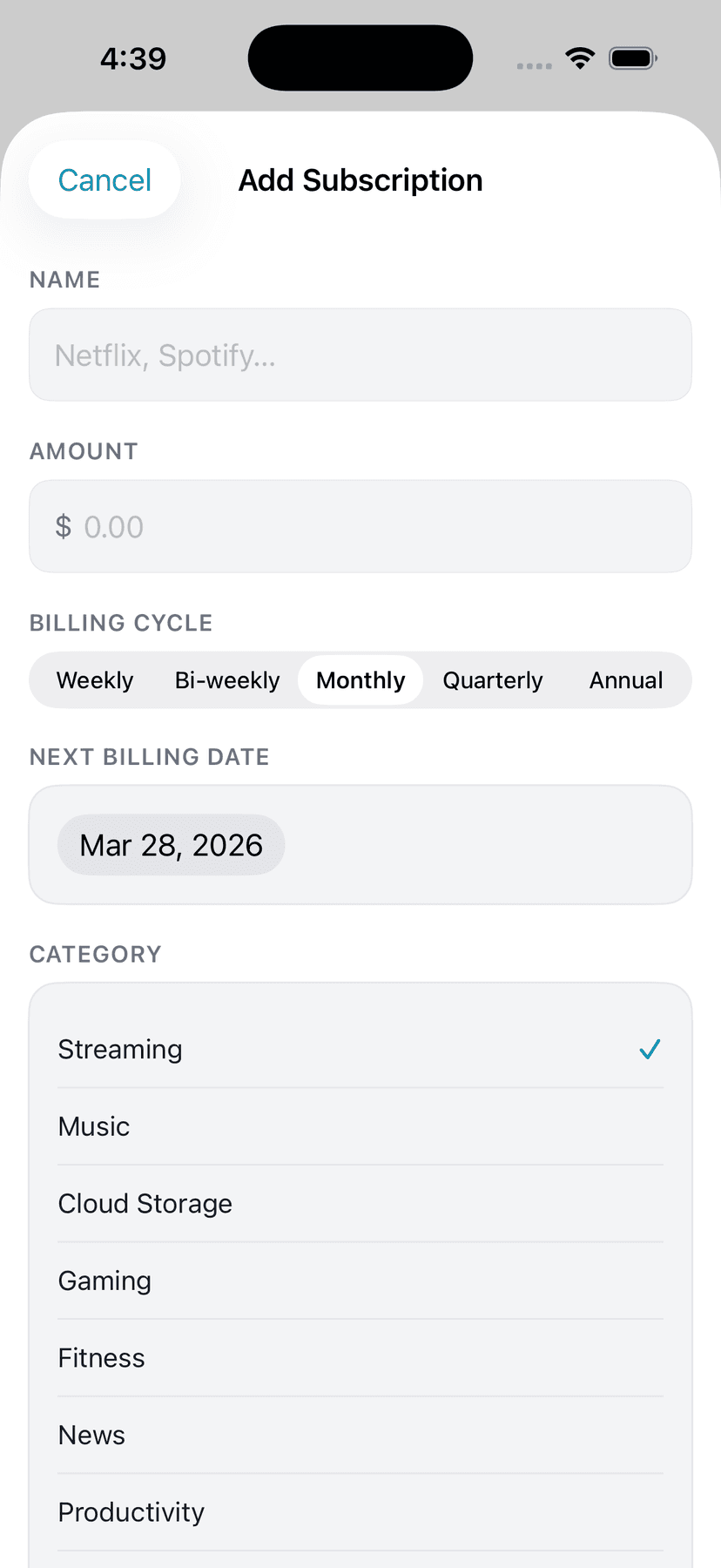
Tap the '+' button from the Recurring screen. Enter: the payment name (e.g., 'Rent', 'Netflix', 'Car Loan'), amount (e.g., $1,500), category (choose from 18 built-in categories or create a custom category with an SF Symbol icon), billing cycle (Weekly, Bi-weekly, Semi-monthly, Monthly, Bi-monthly, Quarterly, Annual), and next billing date. Toggle whether it's currently active. Tap 'Save' to add it.
Tips
- ‣Annual payments are divided by 12 for your monthly budget impact
- ‣Weekly payments are multiplied by 52/12 (about 4.33) for monthly calculations
- ‣The next billing date is used for the Payment Calendar
- ‣You can add inactive recurring payments to track services you've paused
8.2 Built-In Categories
Ghost includes 18 built-in categories for recurring payments: Rent, Mortgage, Vehicle, Loan, Insurance, Utilities, Phone & Internet, Streaming, Music, Cloud Storage, Gaming, Fitness, News, Productivity, Food Delivery, Childcare, Membership, Other. You can also create custom categories with a custom name and SF Symbol icon from a palette of 100+ icons in 11 groups.
8.3 Billing Cycles & Semi-Monthly Support
Ghost supports all common billing cycles: Weekly, Bi-weekly, Semi-monthly, Monthly, Bi-monthly, Quarterly, Annual. For semi-monthly (twice per month), you pick two payment days (e.g., the 1st and the 15th). Ghost automatically handles edge cases: if you pick the 31st and a month has only 28 days (February), Ghost clamps it to the last day (28th) automatically.
8.4 Auto-Detection from Transactions
Automatic Detection
When you link a bank account or import transactions, Ghost scans your transaction history for recurring charges. It looks for patterns: same merchant, similar amount (within 10% tolerance), consistent intervals (weekly, monthly, etc.). Known services like Netflix, Spotify, iCloud, and 50+ others are detected from even a single charge. Detected recurring payments appear in a 'Detected' card at the top of the Recurring screen.
Tips
- ‣Ghost checks for consistent amounts within 10% tolerance (handles small price changes)
- ‣Higher confidence scores mean stronger recurring patterns
- ‣Known payment merchants are detected with just 1 charge
- ‣Detection runs automatically when you open Recurring with transaction data loaded
One-Tap Add from Detection
Each detected recurring payment shows the merchant name, estimated billing cycle, number of charges found, and amount. Tap the '+' button next to any detected payment to instantly add it to your tracked recurring payments. Ghost pre-fills the name, amount, and billing cycle. The detected card disappears once you add or dismiss it.
Tips
- ‣Review the estimated billing cycle — Ghost infers it from charge intervals
- ‣You can edit any details after adding (name, amount, cycle, category)
- ‣Recurring payments you've already added won't appear in the detected list
8.5 Last Payment Date Flow
If you're adding a recurring payment but aren't sure when the next one is due, you can enter "When did I last pay this?" and Ghost will auto-calculate the next payment date based on your billing cycle. For example, if you entered "Last paid on March 10" for a monthly payment, Ghost automatically sets the next payment to April 10.
8.6 Price Change Alerts
When you update a recurring payment's price, Ghost remembers the old price and shows a price change alert card at the top of the Recurring screen. For example: "Netflix charged you $22.99 this month, which is $3 higher than last month." This helps you catch silent price increases from services that gradually raise their fees.
8.7 How Recurring Payments Affect Your Budget
Your total active recurring payment cost (normalized to monthly) feeds into several calculations throughout Ghost:
- Cash Flow card — recurring payments are your "Fixed Bills"
- Safe-to-Spend — upcoming unpaid recurring payments are subtracted from available cash
- Payment Calendar — recurring payment due dates appear on the calendar
- Bill paid status — Ghost checks if a recurring payment has been charged this month by matching merchant names in your transactions
8.8 Auto-Cancel Banner (Coming Soon)
A "Coming Soon" / Ghost Pro feature will automatically cancel recurring payments after they reach zero balance or a set end date. For now, you can toggle 'Active' off to pause a recurring payment or delete it entirely.
8.9 Editing & Deleting Recurring Payments
Open the Context Menu
Long-press any recurring payment to see a context menu with three options: Edit, Mark Active/Inactive, and Delete. Mark Active/Inactive lets you quickly pause or resume a payment without opening the full edit sheet.
Full Edit Sheet
Tap 'Edit' to open a full edit sheet where you can change: the payment name, amount, billing cycle (all 7 options — Weekly, Bi-weekly, Semi-monthly, Monthly, Bi-monthly, Quarterly, Annual), next billing date, and category. For semi-monthly cycles, two day-pickers appear so you can set both billing days (e.g., the 1st and the 15th). You can also change the category, including selecting a custom category with its own SF Symbol icon.
Tips
- ‣Changing the billing cycle updates the next billing date automatically
- ‣Semi-monthly day pickers clamp to the last day of the month for short months
- ‣Custom categories created elsewhere appear in the category picker here too
- ‣Inactive payments can still be edited — useful for updating a paused service before reactivating
Delete a Recurring Payment
Tap 'Delete' from the context menu to remove the recurring payment entirely. A confirmation dialog appears before deletion. Note: if a loan created this recurring payment automatically, deleting it here only removes the recurring entry — the loan itself is unaffected.
8.10 Family Shared Recurring Payments
Recurring payments are visible to all family members in a household. When you add a recurring payment, your family members see it on their Recurring screen. This helps partners stay aware of household fixed expenses and due dates. Recurring payment details are read-only for family members — only the owner can edit or delete.
8.11 Loan Auto-Creates Recurring Payment
When you add a loan with a monthly payment amount, Ghost automatically creates a corresponding recurring payment entry. For example, if you add a mortgage with a $2,000/month payment, Ghost adds a "Mortgage" recurring payment with $2,000 monthly. You can edit or delete this recurring payment independently.
8.12 Smart Advice Card
The Smart Advice Card at the bottom of your recurring payments list provides dynamic insights based on your actual subscription and bill data:
- Monthly and annual spend awareness — Your total active recurring spend shown monthly and annualized
- Top spending category breakdown — Which category of recurring payment costs you the most
- Subscription creep warning — Triggers when your annual recurring total exceeds $3,000, prompting a review
- Inactive subscription reminders — Flags services you've paused but are still paying for
- Price change alerts — Highlights recent price increases detected on your recurring payments
- Upcoming end date notifications — Warns you of subscriptions ending within 30 days
Canadian tips included:review subscriptions quarterly (the average Canadian wastes $150/month on unused services), bundle services where possible, use annual billing for 15–20% savings, and negotiate telecom rates annually (Bell, Rogers, Telus are all negotiable).
9. Loan Auditor
The Loan Auditor helps you understand and evaluate your loans — mortgages, car loans, lines of credit, student loans, and more. Upload a loan document for AI-powered analysis, enter details manually, and use the Payment Planner to see how extra payments can save you thousands in interest.
9.1 Viewing Your Loans
Loan Dashboard
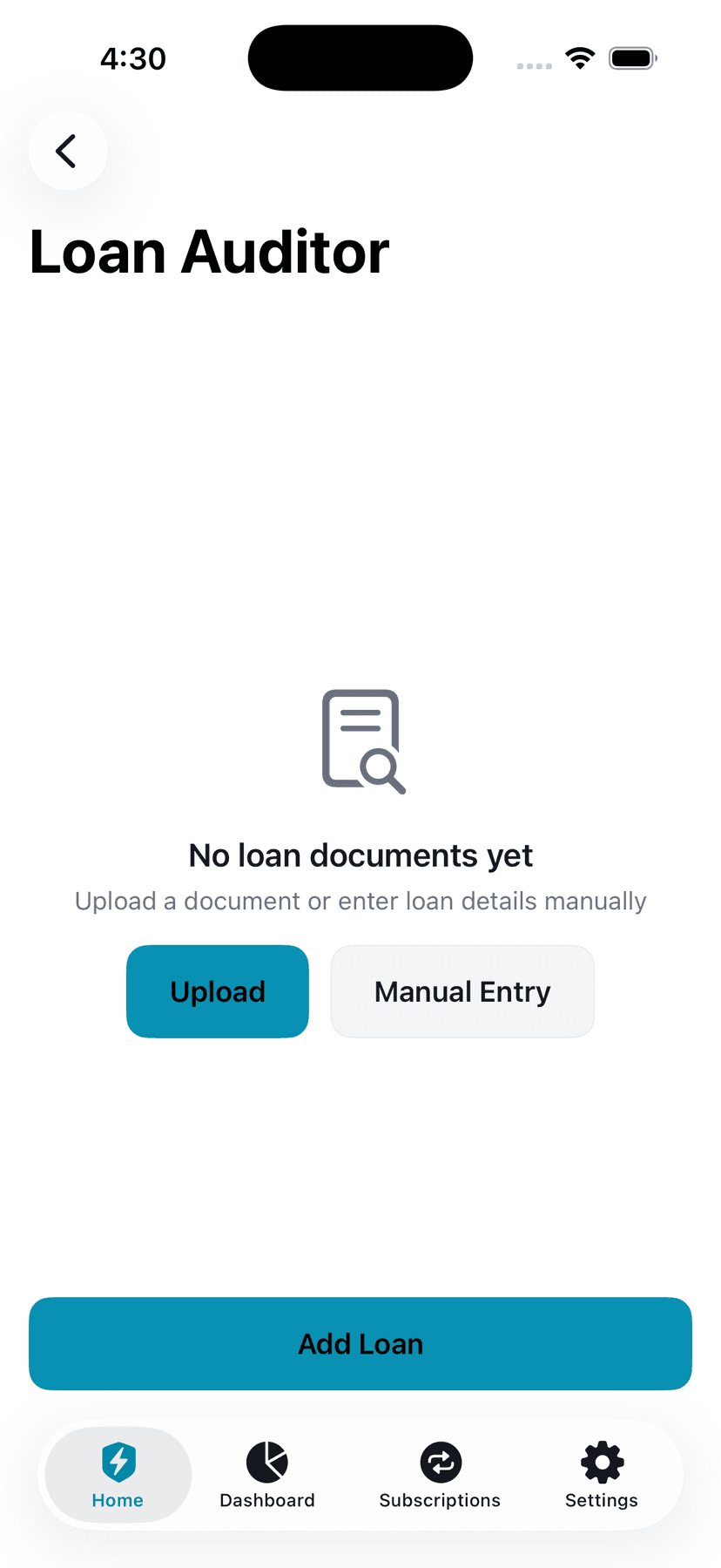
The Loan Auditor screen shows all your loan documents. Each card displays the file name, lender, loan type, and a consumer score badge (0-100). Green badge = good terms, Yellow = caution, Red = concerning. Loans without a score show 'Pending'. Tap any loan to see its full details. Long-press to delete.
9.2 Adding a Loan
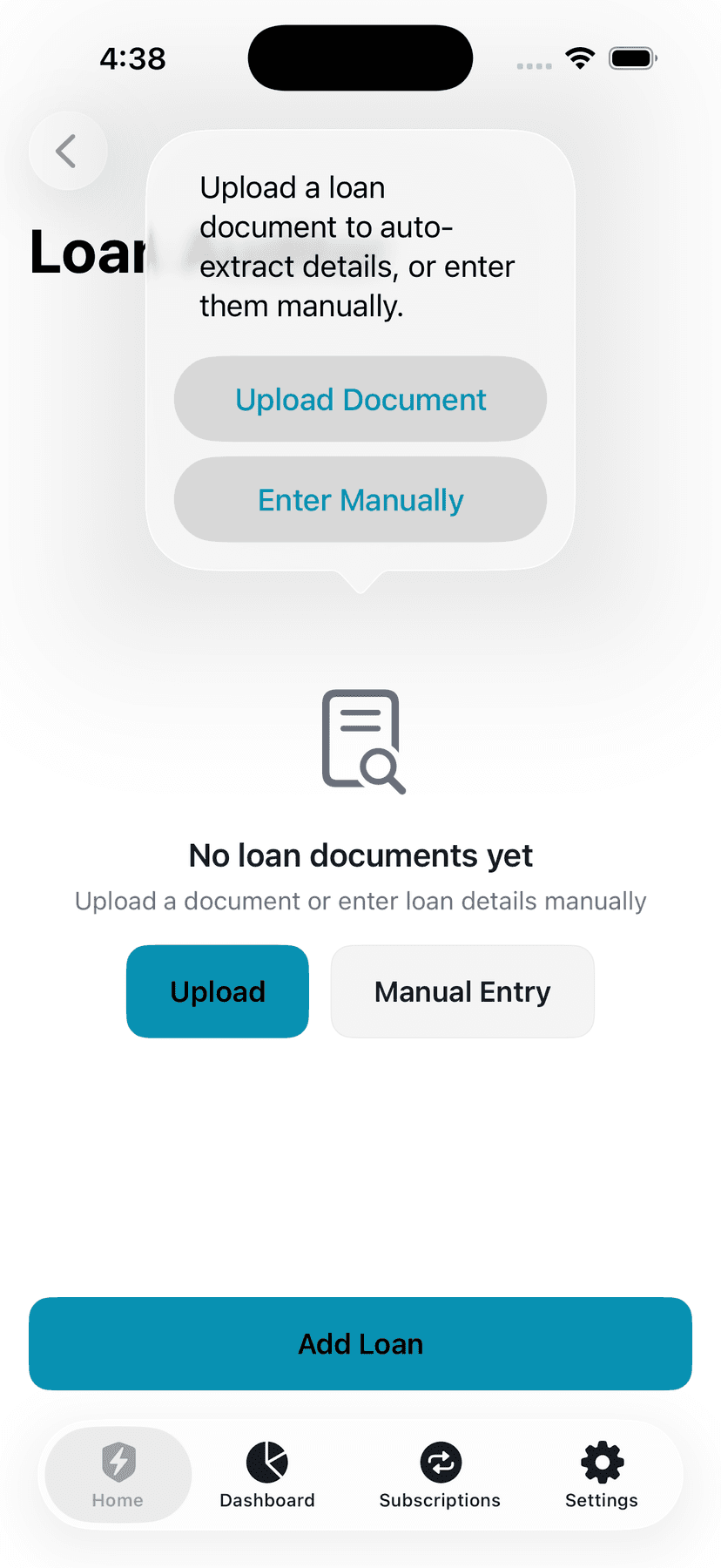
Choose Your Method
Tap 'Add Loan' to see two options: 'Upload Document' (AI-powered extraction from a PDF or photo) or 'Enter Manually' (type in the details yourself). Both methods result in a scored loan with full detail view.
9.3 Loan Types
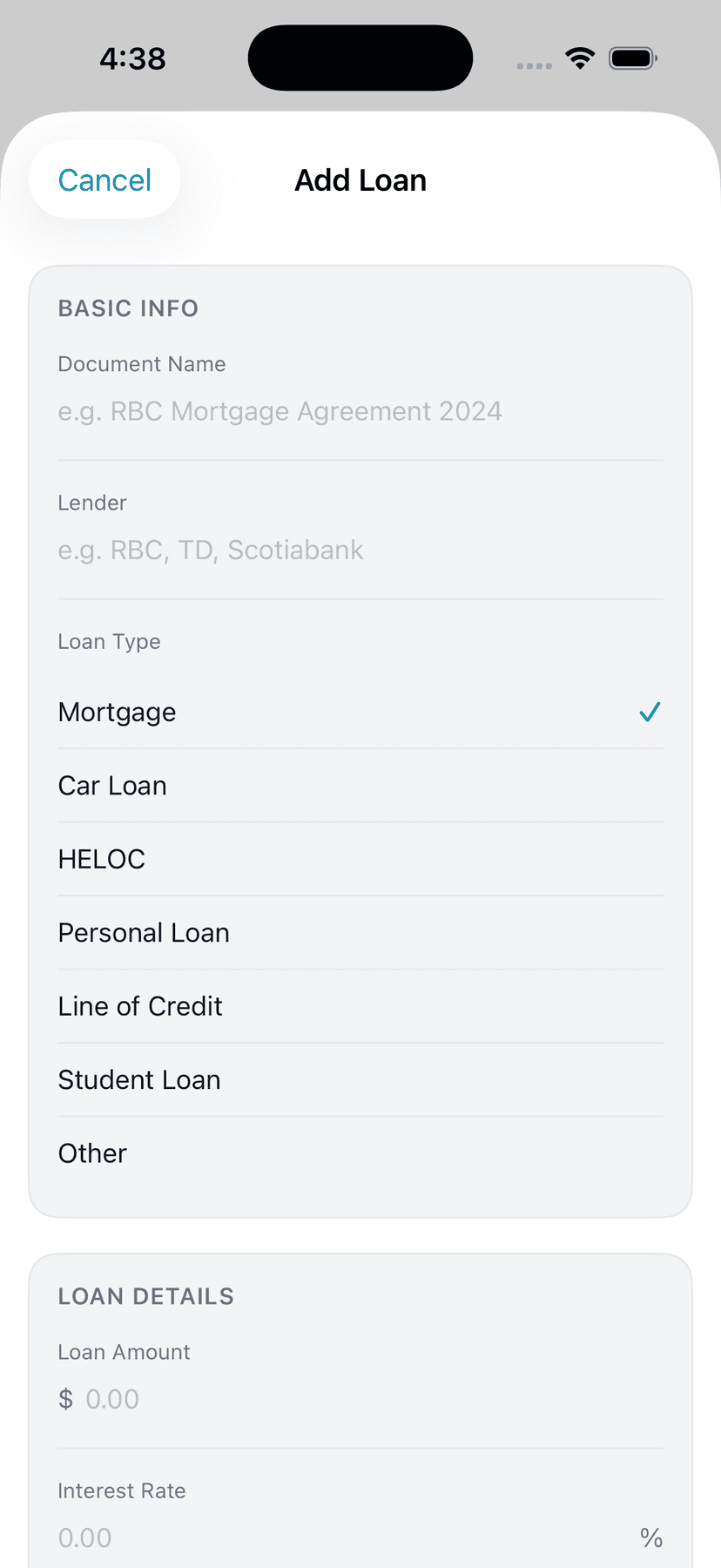
Ghost supports seven loan types: Mortgage, Car Loan, HELOC, Personal Loan, Line of Credit, Student Loan, Other.
9.4 Upload a Document (AI Analysis)
Choose a Source
Tap 'Upload Document' to see two options: 'Choose PDF' (select a loan agreement PDF from Files) or 'Take Photo' (photograph a paper loan document). Ghost extracts the text using OCR, then sends it to Ghost AI for analysis.
AI Analysis
Ghost AI reads your loan document and extracts: lender name, loan type, loan amount, interest rate (fixed or variable), term length, monthly payment, fees, prepayment penalties, insurance requirements, and total interest cost. It also scores the loan from 0-100 based on Canadian market benchmarks and generates a plain-English summary.
Tips
- ‣Analysis takes 15-30 seconds depending on document length
- ‣The AI compares your rate to current Canadian market averages
- ‣Review the extracted details before saving — AI extraction isn't perfect
- ‣Works best with clear, readable documents
Review and Save
After analysis, Ghost shows all extracted details for your review: lender, type, amount, rate, term, payment, fees, and consumer score. If everything looks correct, tap 'Save Loan'. If something is wrong, you can discard and try again or enter manually instead.
9.5 Manual Entry
Enter Loan Details
The manual entry form has three sections: Basic Info (document name, lender, loan type selector), Loan Details (amount, interest rate with fixed/variable toggle, term in months, amortization for mortgages, monthly payment, first payment date), and Fees & Protection (lender fees, prepayment penalty toggle + percentage, insurance required toggle + monthly amount). Fill in what you know — all fields except the document name are optional. Ghost auto-calculates remaining balance based on your first payment date and any extra payments made.
Tips
- ‣If you enter amount, rate, and term, tap "Calculate Payment & Interest" to auto-calculate your monthly payment and total interest cost
- ‣For mortgages, the term (e.g., 60 months / 5 years) is different from the amortization (e.g., 300 months / 25 years)
- ‣Ghost scores the loan automatically based on whatever details you provide
- ‣First Payment Date is used to calculate your estimated remaining balance
9.6 Estimated Balance Calculation
When you enter your first payment date, Ghost automatically calculates your estimated current balance by subtracting all payments made since inception. The Estimated Balance card shows: remaining balance, percentage of loan paid off, and months of payments remaining.
9.7 Extra Payments Toggle
If you've made additional payments beyond your scheduled payment amount, toggle 'Made additional payments?' and enter the total extra amount. Ghost uses this to recalculate your remaining balance and adjust the payment planner scenarios.
9.8 Loan Detail View
Tapping a loan shows its full detail view with: a score gauge (circular progress with color-coded rating), sub-scores for Interest Rate, Fees, Terms, and Protection (each out of 25 points), a Loan Summary card with all the key numbers, a Fees & Protection card, and AI-generated insights (e.g., "Excellent interest rate for this loan type", "High prepayment penalty — consider negotiating").
9.9 Payment Planner (Amortization & What-If)
From any loan with an amount and rate, tap "Payment Planner" to access the amortization calculator. This shows a full payment schedule (monthly or yearly), a balance chart showing your loan payoff over time, and what-if scenarios: "What if I pay an extra $25/month? $50? $100?" Each scenario shows how much faster you'd pay off the loan and how much interest you'd save. Use the custom slider to try any extra payment amount.
9.10 Consumer Score Explained
The consumer score (0-100) evaluates how consumer-friendly your loan is based on four factors, each worth 25 points:
- Interest Rate (25 pts) — Compared to current Canadian market averages for that loan type
- Fees (25 pts) — Lender fees as a percentage of the loan amount
- Terms (25 pts) — Based on loan term length and whether the amortization is reasonable
- Protection (25 pts) — Prepayment flexibility, penalty severity, insurance requirements
Overall rating: Green (70-100) = good deal, Yellow (40-69) = caution, Red (0-39) = concerning terms.
9.11 Editing & Deleting Loans
Open the Edit Sheet
From a loan's detail view, tap the pencil icon to open the full edit sheet. The edit sheet includes all loan fields: loan type, loan amount, interest rate, rate type (fixed or variable), term (in months), amortization period (for mortgages), payment amount, payment frequency (Weekly, Bi-weekly, Semi-monthly, Monthly, Bi-monthly, Quarterly, Annual — with semi-monthly day pickers), lender fees, prepayment penalty toggle and percentage, insurance toggle and monthly amount, and notes.
Tips
- ‣All fields are optional — fill in whatever you have available
- ‣Changing the rate or term and tapping "Calculate Payment & Interest" recalculates your payment and total interest
- ‣For mortgages, amortization (e.g., 25 years) is separate from the term (e.g., 5 years)
- ‣Semi-monthly payment frequency shows two day pickers for both payment days
Save & Update Recurring
Tap 'Save & Update Recurring' to save your changes and also update the linked recurring payment entry that Ghost created when you added this loan. This keeps your recurring payment in sync — for example, if you refinanced and your payment amount changed, both the loan record and the recurring payment reflect the new amount.
Delete a Loan
The delete button at the bottom of the edit sheet removes both the loan record AND its linked recurring payment in one action. A confirmation dialog appears before deletion. This ensures your recurring payments list stays clean when you pay off or remove a loan.
Tips
- ‣Deletion cannot be undone — the loan document and all associated data are permanently removed
- ‣If you only want to remove the recurring payment but keep the loan, delete the recurring entry from the Recurring screen instead
9.12 Family Shared Loans
Loans are visible to all family members in a household. When you add a loan, your family members see it on their Loan Auditor screen. This helps partners stay aware of household debt and interest costs. Loan details are read-only for family members — only the owner can edit or delete.
9.13 Smart Advice Card
The Smart Advice Card at the bottom of your Loan Auditor screen gives you a comprehensive view of your total debt picture:
- Total debt overview — Sum of all loan balances and combined monthly payment obligations
- Highest interest loan — Identifies your most expensive loan and recommends the avalanche method (pay it down first to minimize total interest paid)
- Prepayment penalty warnings — Alerts you if any of your loans carry prepayment penalties before you make extra payments
- Variable/adjustable rate exposure — Flags how much of your total debt is at variable rates and vulnerable to rate increases
- Loan insurance cost breakdown — Shows the monthly cost of any optional creditor insurance across your loans
- Total interest you'll pay — Projects the total interest cost across all loans at current payment levels
Canadian-specific tips included:make lump-sum prepayments on mortgage anniversary dates (most lenders allow 10–20% annually without penalty), use accelerated bi-weekly payments to shave years off your mortgage, consider refinancing at renewal if rates have dropped, and keep your total debt-to-income ratio below 40% for mortgage qualification.
10. Insights & Ghost Score
10.1 Ghost Score
Your 50/30/20 Score
The Ghost Score is a 0-100 rating that measures how closely your spending follows the 50/30/20 rule: 50% of income on Needs (housing, groceries, transport, health, insurance, childcare), 30% on Wants (dining, shopping, entertainment, travel, personal care, pets, subscriptions), and 20% on Savings. The score gauge shows your overall rating, and three bucket bars show how each category compares to its target.
Tips
- ‣A perfect 100 means you're exactly at or under 50/30/20
- ‣The Ghost Score requires monthly income to be set — update it in Settings > Profile
- ‣Savings is calculated as: Income - Needs Spending - Wants Spending
- ‣Score labels: 75+ = On Track, 50-74 = Needs Attention, below 50 = Off Track
10.2 Spending Anomalies
Ghost compares your current month's spending in each category to your 3-6 month average. If any category is 30%+ above average, Ghost shows an anomaly alert card with: the category name, current spend vs average, percent above normal, and the top 3 merchants driving the increase. This catches things like an unusually expensive month for dining or a surprise insurance charge.
10.3 Spending Trends
The Spending Trends view shows your total spending over the last 6 months as a bar chart. See month-over-month changes and identify patterns. Access it from the Insights screen.
10.4 Weekly Digest
The Digest card shows a quick summary: total spending this month vs last month, the percentage change, your top spending category, and how many anomalies were detected. This gives you a 10-second health check of your finances.
11. Ghost AI
11.1 What Ghost AI Can Do
Your Canadian Finance Assistant
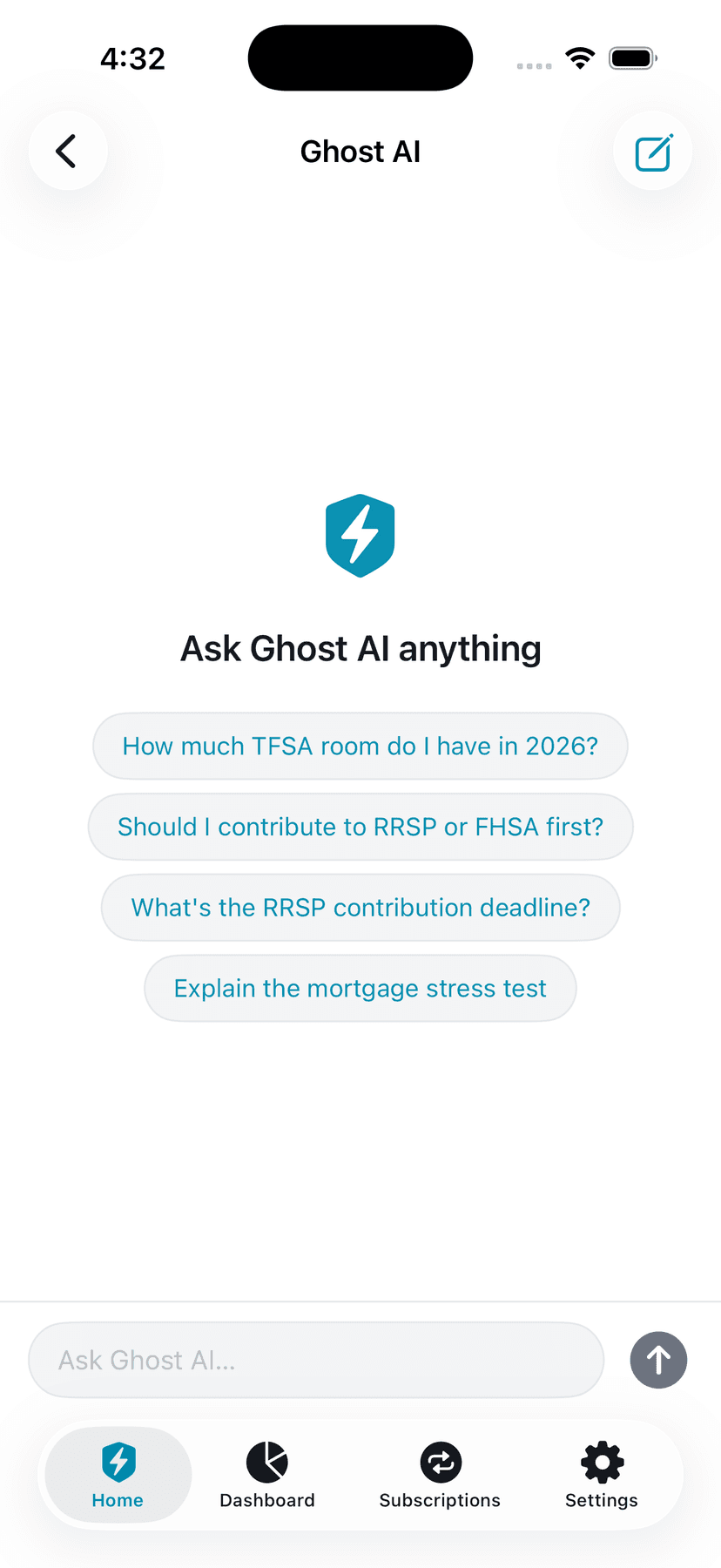
Ghost AI is a conversational assistant specialized in Canadian personal finance. It knows about TFSAs, RRSPs, FHSAs, RESPs, Canadian tax brackets, provincial differences, the mortgage stress test, and more. Ask it anything about your finances — it uses your actual financial data (income, spending patterns, budget status) to give personalized answers.
Tips
- ‣Try the suggested prompts to get started: TFSA room, RRSP deadlines, mortgage stress test
- ‣Ghost AI remembers your conversation within a session — ask follow-up questions
- ‣Tap the pencil icon in the top right to start a new conversation
- ‣Your conversation history is automatically purged after 90 days for privacy
11.2 Example Questions
11.3 Important Disclaimer
Ghost AI Is Not a Financial Advisor
Ghost AI provides general financial information and education based on Canadian tax and finance rules. It is not a licensed financial advisor, and its responses should not be treated as personalized investment, tax, or legal advice. Every AI response displays an "AI-generated — not financial advice" label. For advice specific to your situation, consult a qualified financial professional (CPA, CFP, or licensed investment advisor).
Ghost AI will never: recommend specific stocks, ETFs, or investments; guarantee returns; provide tax filing advice; or tell you to make specific financial decisions. It will: explain financial concepts, help you understand your spending, answer Canadian tax questions, and suggest general strategies.
12. Transactions
12.1 Transaction List & Search
View All Transactions
Go to Transactions from the Home grid. You'll see a full list of all your transactions sorted by date (newest first). A summary card at the top shows total spending and total income for the current month. Use the search bar at the top to find a specific transaction by merchant name. Use filter buttons (All, Expenses, Income) to show only the transaction types you want.
Tips
- ‣Transactions are grouped by date for easy scanning
- ‣Income transactions show in green, expenses in the default color
- ‣Manually entered transactions have a "Manual" badge to distinguish them from imported ones
12.2 Quick Add (Manual Entry)
Add a Transaction Manually
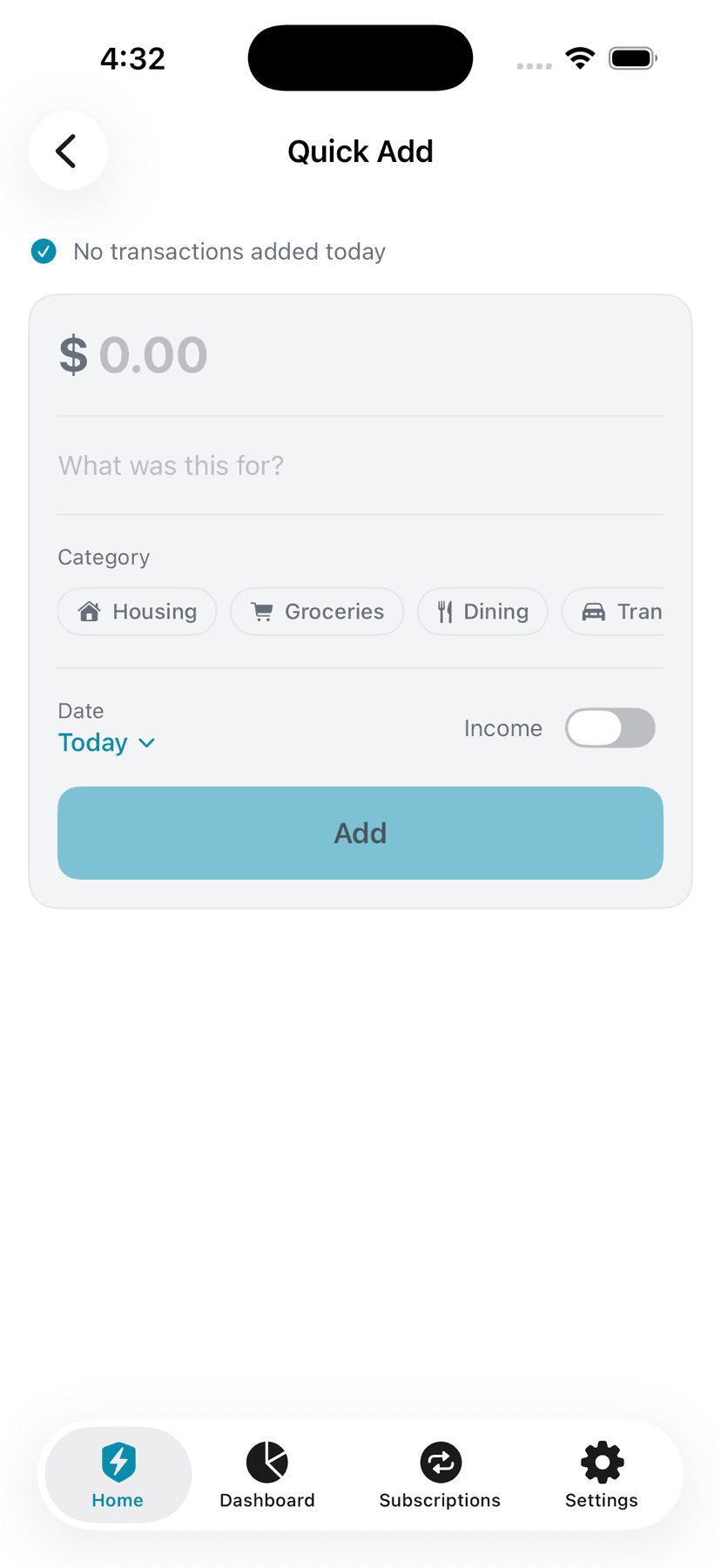
Go to Quick Add from the Home grid. Enter the merchant name, amount, select a category from the grid, and set the date. Toggle whether it's income or an expense. A 'Recent Entries' section shows your last 10 manually added transactions with swipe-to-delete support. An entry count banner at the top shows how many you've added this month. Tap 'Add Transaction' to save.
Tips
- ‣Quick Add transactions feed into budgets, insights, and the Ghost Score just like bank-linked ones
- ‣Use this for cash purchases like farmers markets, parking meters, etc.
- ‣The category you select determines which budget the transaction counts against
12.3 Editing & Recategorizing Transactions
Edit Any Transaction
Tap any transaction in the list to open the Edit Transaction sheet. You can change the merchant name, amount, category, and whether it's income or an expense. This is essential for fixing auto-categorization mistakes — for example, if 'Costco' was categorized as 'Shopping' but you bought groceries, change it to 'Groceries' and it will move to the correct budget.
Tips
- ‣Recategorizing a transaction immediately updates your budget totals
- ‣The category picker shows all available categories with icons for easy selection
- ‣You can also change the amount if it was imported incorrectly
- ‣The transaction date and account are shown but cannot be changed
- ‣Tap "Save Changes" to update — the change is saved to your account instantly
Deleting Transactions
From the edit sheet, scroll down and tap the red 'Delete Transaction' button. A confirmation dialog appears before the transaction is deleted. You can also long-press a transaction in the list for a context menu with delete option.
Tips
- ‣Deleted transactions cannot be recovered — be careful
- ‣Deleting a transaction immediately updates your budget totals
12.4 Why Recategorization Matters
Auto-categorization works well for most transactions, but some merchants span multiple categories. A purchase at Walmart could be groceries, household items, or electronics. By recategorizing, you ensure your budget tracking is accurate. Your Ghost Score, spending insights, and anomaly detection all improve with correctly categorized transactions.
12.5 Family Shared Transactions
Transactions inherit their sharing status from their parent account. If your "TD Chequing" is shared with family, all transactions in that account are visible to family members. If your "RBC Savings" is private, nobody sees those transactions.
13. Payment Calendar
The Payment Calendar is a comprehensive cash flow management tool. It shows a monthly calendar view with your pay days, bills due dates, and a detailed cash flow timeline that helps you understand when money is coming in and going out.
13.1 Calendar Grid
See What's Due
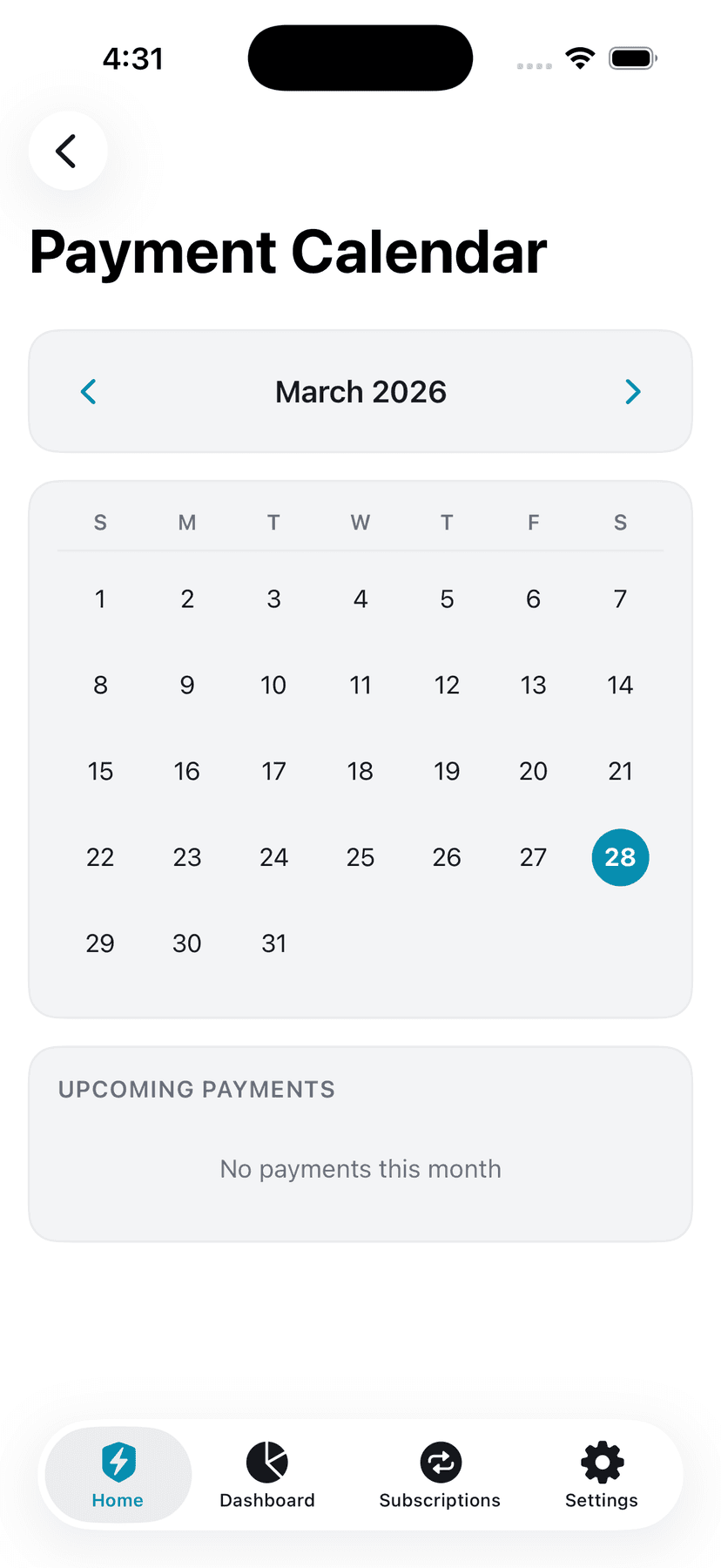
The Payment Calendar shows a monthly calendar view with all your upcoming subscription payments, recurring bills, loan payments, line of credit payments, credit card payments, and pay days. Pay days appear with green numbers and green dots. Bill due dates appear with cyan dots. Navigate between months using left/right arrows at the top. Ghost intelligently projects payments based on their billing cycle: weekly payments show 4-5 dots per month, bi-weekly show 2-3 dots, semi-monthly show 2 dots, monthly show 1 dot, and bi-monthly/quarterly/annual payments only appear in the correct months.
Tips
- ‣All payment sources feed into the calendar: recurring payments, loans (auto-created), lines of credit (auto-created), and credit cards (auto-created)
- ‣Weekly and bi-weekly payments correctly show multiple occurrences per month
- ‣Quarterly and annual payments only show in the months they actually occur
- ‣Pay days come from your Settings > Profile income settings
- ‣The calendar helps you avoid overdrafts by seeing when large payments cluster together
13.2 Cash Flow Status Card
Below the calendar, Ghost displays a Cash Flow Status Card showing your "Low Point" — the lowest balance you'll reach before your next pay day. The card is color-coded: red (you'll go negative), yellow (tight), or green (healthy). This helps you see whether you have enough cash to cover all bills due before your next pay day.
13.3 Cash Flow Timeline
Below the status card, Ghost displays a chronological timeline of all your income and bills for the month. Each event shows: the date, type (pay day or bill), amount, and running balance. Pay days are shown in green with your income amount. Bills are shown in red with the payment amount and your balance after that payment. If you're in a family group, pay days show both members' names (e.g., "Solomon — Pay Day $5,000", "Sarah — Pay Day $4,500") and the household combined income is used for balance calculations.
13.4 Smart Money Moves
When your projected surplus (income minus bills for the month) is greater than $50, Ghost shows a "Smart Money Moves" card suggesting how to allocate the surplus: 50% to Savings, 30% to Extra Loan Payments, 20% to Emergency Fund. This helps you make the most of surplus cash flow.
13.5 Upcoming Payments Section
A section below the timeline lists all upcoming payments for the month with their total. This gives you a quick overview of total obligations.
13.6 Family Member Pay Days
In a family group, all family members' pay days appear on the calendar (labeled with each person's name) and in the timeline. The household combined income is shown and used for cash flow calculations, helping you coordinate household finances.
14. Tax Documents
14.1 CRA Notice of Assessment Tracking
Track Your Tax Information
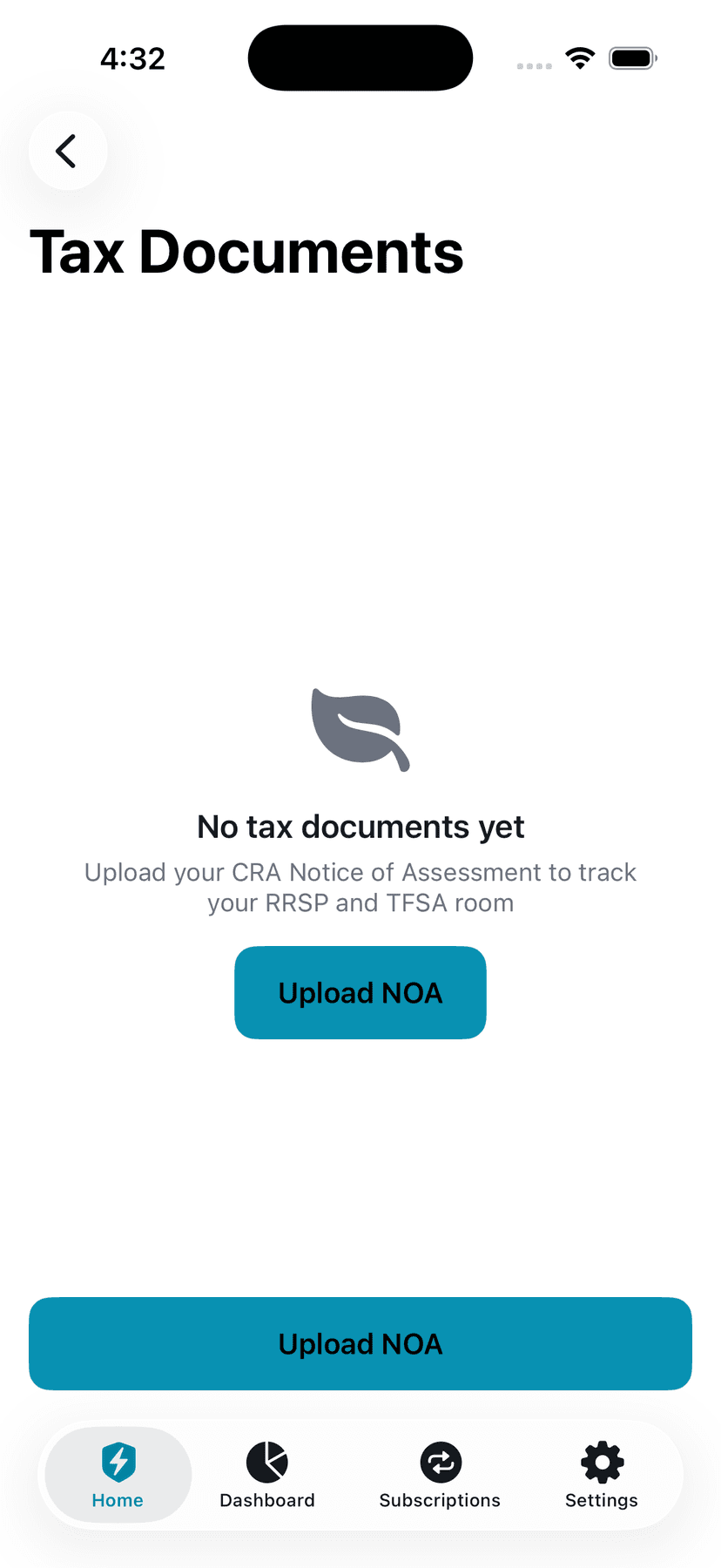
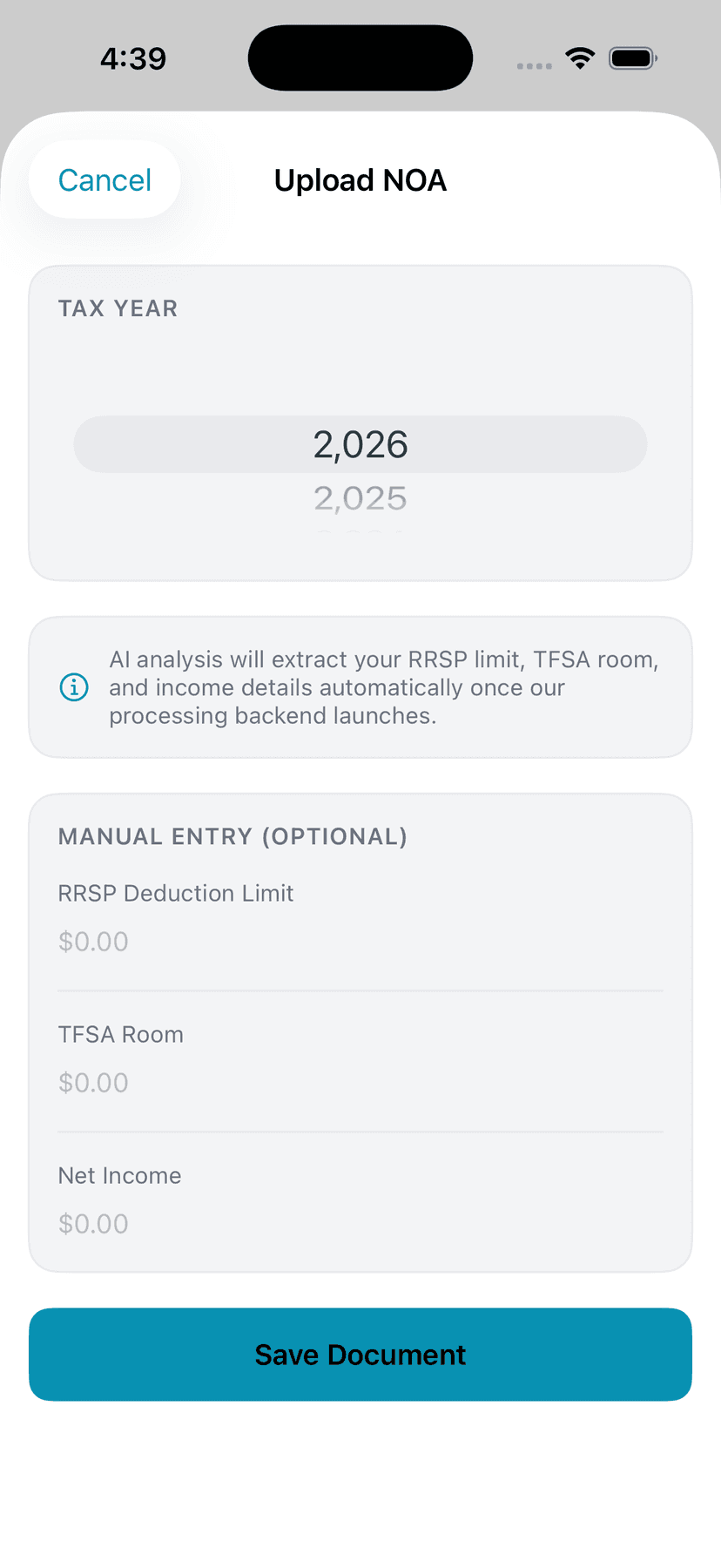
The Tax Documents feature stores your CRA Notice of Assessment (NOA) information: RRSP deduction limit (contribution room for next year), TFSA room, net income, total income, and tax payable. This is the only place in Canada where your TFSA and RRSP room is tracked outside of CRA My Account.
14.2 Adding a Tax Document
Enter NOA Details
Tap '+' to add a new Notice of Assessment. Select the tax year, then enter your RRSP deduction limit, TFSA room, and net income. These values come from your CRA NOA — you receive one every year after filing your tax return. Ghost stores this information securely and uses it to power AI answers about TFSA/RRSP contributions.
Tips
- ‣Your RRSP room is on page 1 of your NOA, line 1 or near the top
- ‣TFSA room isn't on the NOA — check CRA My Account online for your current limit
- ‣Keep one entry per tax year for a historical record
- ‣Ghost AI can use this data to answer: "Should I contribute to RRSP or TFSA?"
15. Library
The Library contains 110+ Canadian personal finance articles spanning 8 categories. All content is server-driven, meaning Ghost can update articles without requiring app store updates. Every article is cited with sources and features Ghost branding.
15.1 Browsing the Library
Navigate to Library from the Home grid. Articles are organized by category: Getting Started, Tax Planning, Investing Basics, Debt Management, Banking, Credit, Saving Strategies, and Financial Planning. Tap any article to read the full content. A search bar at the top lets you find articles by keyword.
15.2 Article Features
Each article includes: title, category tag, publication date, estimated read time, cover image, full article text with formatting, related articles section, and sources/citations. Articles are written for Canadian readers and include Canadian-specific information (TFSA, RRSP, provincial tax rates, etc.).
16. Data Export
Export Your Data as CSV
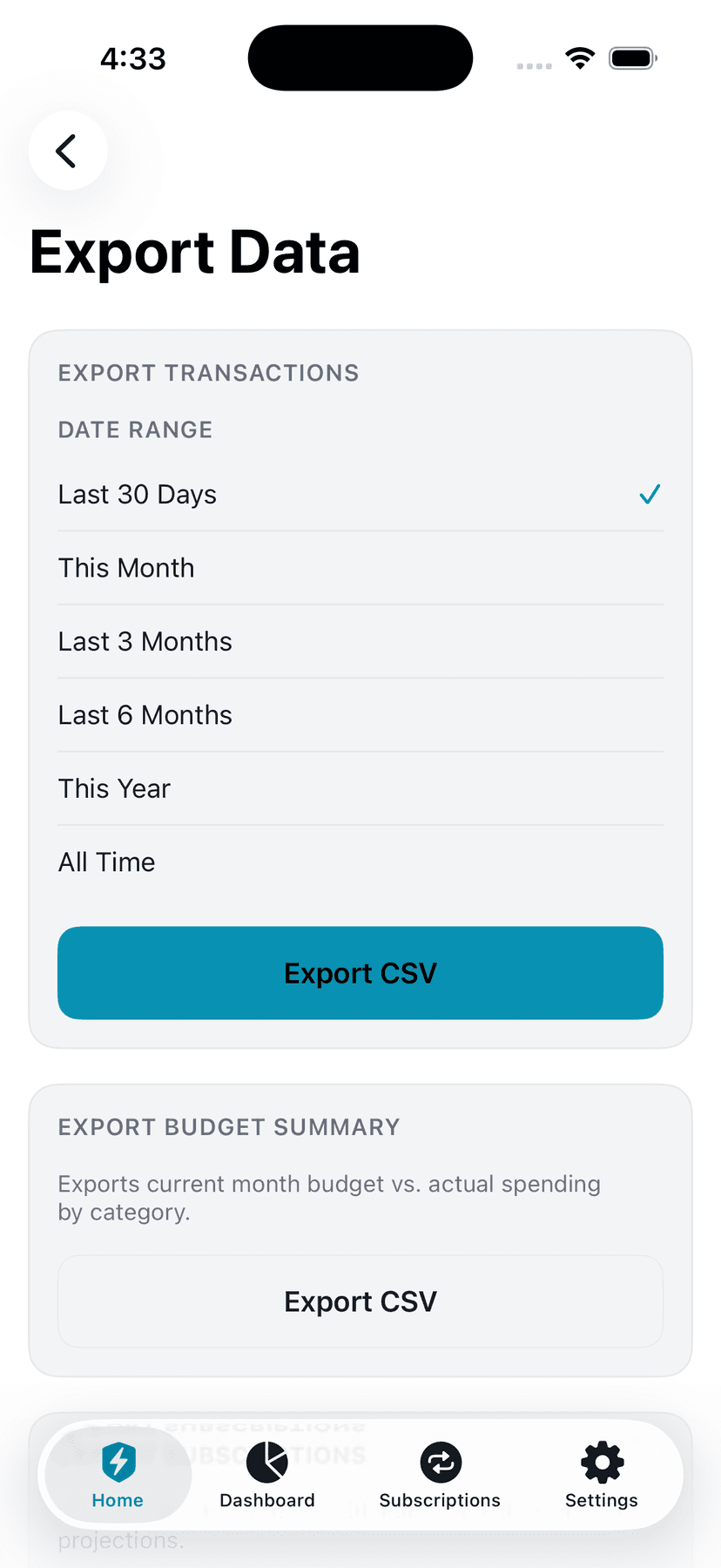
Go to Export from the Home grid. Choose what to export: Transactions, Budgets, or Recurring Payments. Select a date range. Ghost generates a CSV file that you can share via email, AirDrop, save to Files, or open in Numbers/Excel/Google Sheets. The CSV includes all relevant columns (date, merchant, amount, category, etc.).
Tips
- ‣Transaction exports include: date, merchant, amount, category, income/expense flag
- ‣Budget exports include: category, monthly limit, rollover status
- ‣Recurring payment exports include: name, amount, billing cycle, next date, active status
- ‣Great for tax preparation — export a year of transactions grouped by category
17. Family Sharing
Ghost Financial supports household budgeting with per-item privacy controls. Share specific bank accounts and budgets with your partner while keeping others completely private. Both directions work — "I have things I want to keep private and so does my partner."
17.1 Creating a Family Group
Set Up Your Household
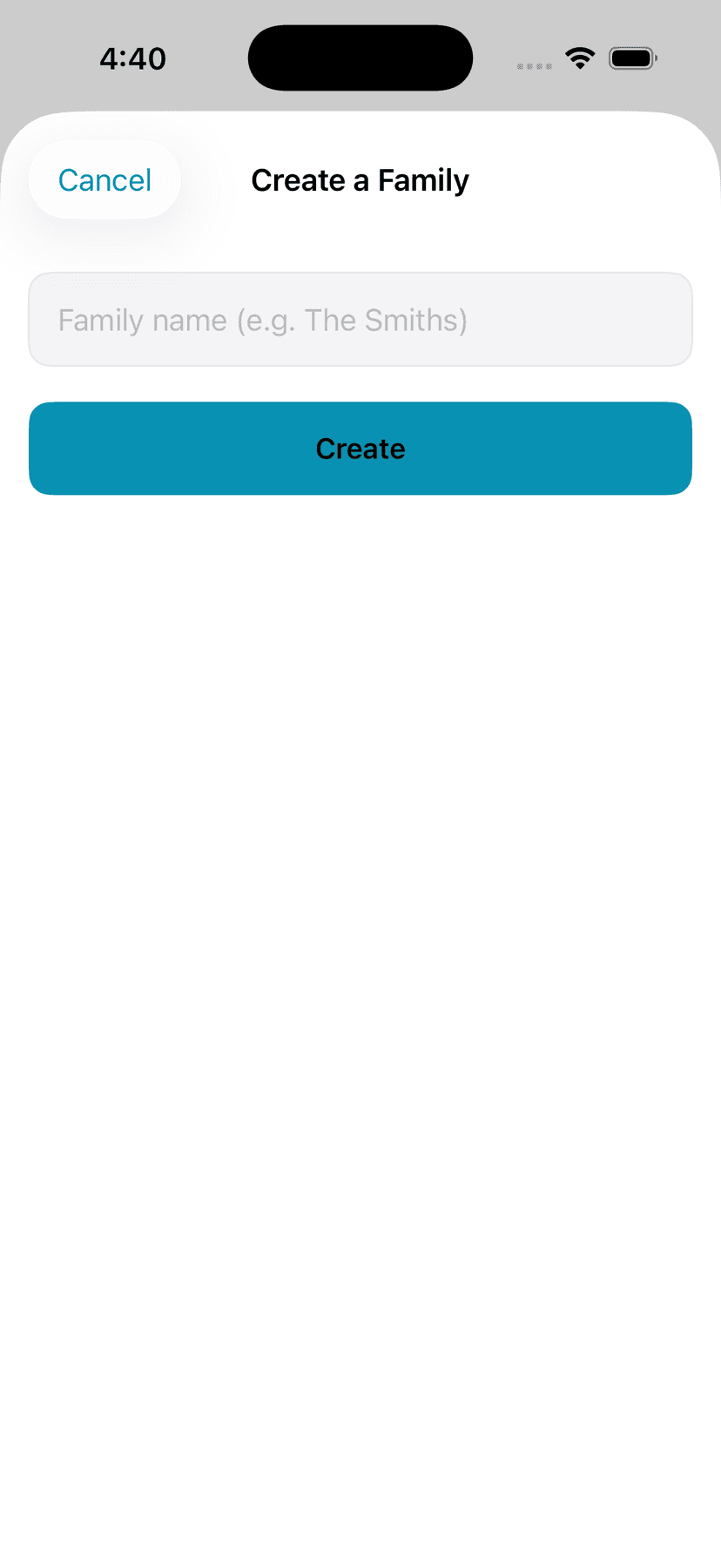
Go to Family from the Home grid. Tap 'Create Family'. Enter a name for your family group (e.g., 'Solomon Family'). You become the owner. Ghost generates a 6-character invite code that you can share with your partner.
17.2 Inviting Members
After creating a family, you can invite members two ways:
- By email — Enter your partner's email address to send an invite. They'll see the invitation in their Ghost app.
- By code — Share the 6-character invite code in person or via text. Your partner enters it in Ghost to join instantly.
17.3 Invite Code Details
Invite codes expire after 24 hours. You can regenerate a new code anytime from the Family screen. This security measure prevents codes from being used far in the future if compromised.
17.4 Joining a Family
Join with a Code
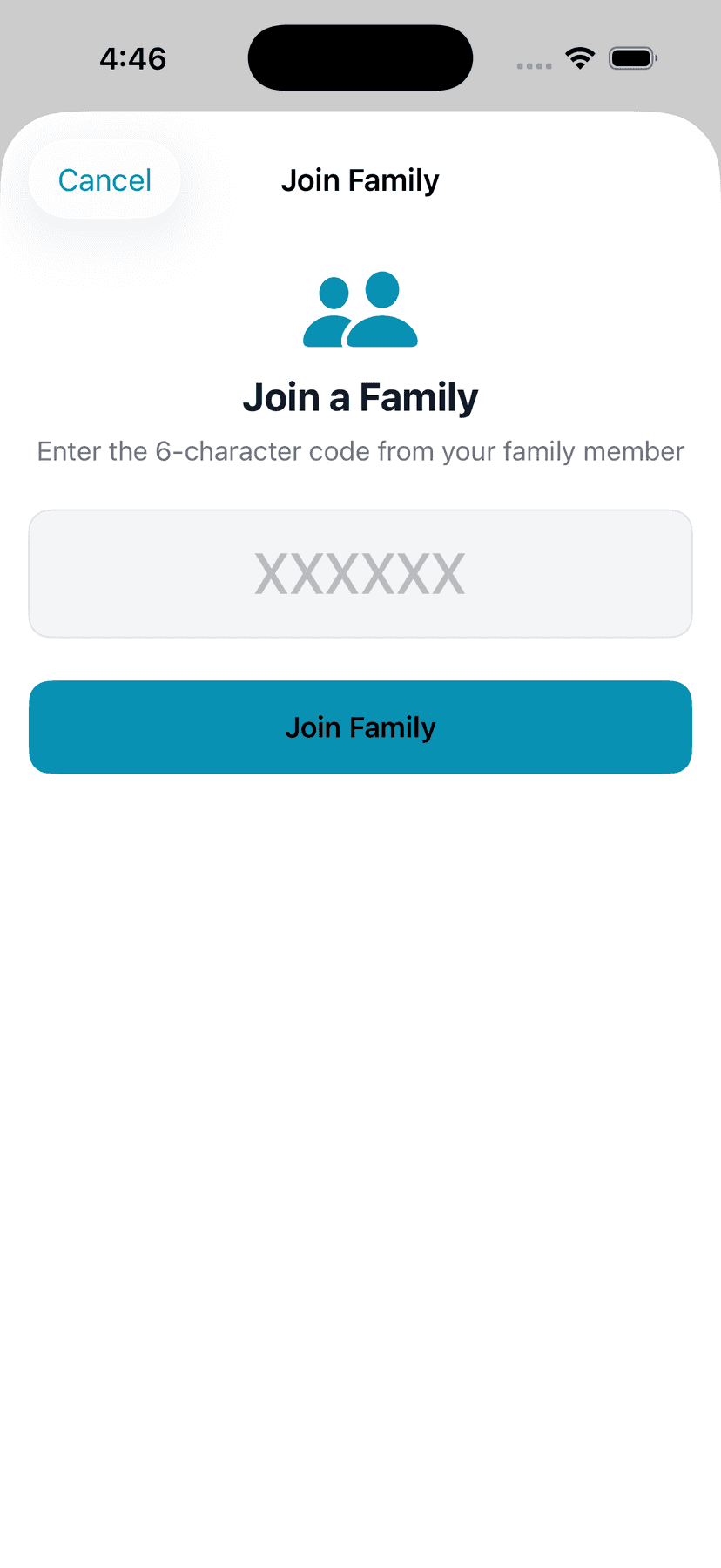
Go to Family and tap 'Join Family'. Enter the 6-character invite code your partner shared with you. Tap 'Join' — you're instantly added to the family group with access to whatever they've chosen to share.
17.5 Privacy Controls
Privacy is the core of Ghost's family sharing. Every account and budget has an individual sharing toggle:
- Toggle ON — This account/budget is visible to your family members (read-only — they can see but can't modify)
- Toggle OFF — This account/budget is completely invisible to family members. They don't know it exists.
Transactions inherit their sharing status from their parent account. If your "TD Chequing" is shared, all transactions in that account are visible to family. If your "RBC Savings" is private, nobody sees those transactions.
Privacy is Enforced at the Database Level
Sharing is enforced by Row Level Security (RLS) in the database — it's not just a UI toggle. Even if someone tried to query the database directly, they cannot see your private accounts. This is the same security model used by banks and enterprise applications.
17.6 Shared Data Sync
All shared data syncs in real-time across devices. When you add a shared transaction, it appears instantly on your partner's app. When they update a shared budget, you see the change immediately. This ensures you're always working with the latest household financial data.
17.7 Household Dashboard
When in a family group, the Dashboard shows household-level data: combined net worth (from all shared accounts), combined budget health, and shared transactions. Private accounts are excluded from household totals.
17.8 Managing Family Members
As the family owner, you can remove members from the Family screen. Removed members lose access to all shared data immediately. Members can also leave a family group voluntarily from their own Family screen.
18. Financial Profiles
Financial Profiles let you create completely separate financial spaces within your Ghost Financial account. Keep your personal finances, corporate expenses, side business income, rental property costs, or any other financial context in its own silo — with its own dashboard totals, budgets, transactions, and everything else. Your family can see your shared items without seeing your corporate profile, and switching between profiles is instant.
18.1 How Profiles Work
Automatic Setup
When you first use Financial Profiles, Ghost automatically creates a 'Personal' profile and assigns all your existing data to it. You don't need to do anything — everything continues to work exactly as before.
Tips
- ‣Your existing data is never lost — it all moves to your Personal profile
- ‣The Personal profile is set as your default and loads automatically on app launch
Profile Switcher
A profile pill appears at the top of your screen showing the active profile (icon + name). Tap it to open the profile picker — select any profile to switch instantly. No loading, no network call. Everything on every tab immediately filters to show only that profile's data.
Tips
- ‣The profile switcher is visible across all tabs
- ‣Switching profiles is instant — your data is already loaded, just filtered differently
- ‣Your last active profile is remembered when you close and reopen the app
18.2 Creating Profiles
Add a New Profile
Tap the profile pill > Manage Profiles > Add Profile. Give it a name (e.g., 'Corporate', 'Side Business', 'Rental Property'), pick an icon from 20 options, and choose a color. The color tints the profile pill so you always know which space you're in at a glance.
Tips
- ‣You can create as many profiles as you need — there is no limit
- ‣Choose descriptive names so you can quickly identify each space
- ‣The icon and color help you visually distinguish profiles when switching
Profile Icons & Colors
Choose from icons like person, building, briefcase, house, car, storefront, dollar sign, chart, hammer, leaf, and more. Pick from 10 colors that match the Ghost design system — teal, blue, purple, red, amber, green, pink, cyan, orange, or indigo.
18.3 Using Profiles Day-to-Day
Everything Filters Automatically
When you switch to a profile, every screen in the app filters to show only that profile's data: Dashboard totals, bank accounts, transactions, budgets, subscriptions, credit cards, lines of credit, loans, savings goals, tax documents, and the payment calendar all update instantly.
Tips
- ‣Dashboard net worth shows only accounts in the active profile
- ‣Budget spending only counts transactions from the active profile
- ‣The payment calendar only shows bills assigned to the active profile
New Items Are Auto-Assigned
Any new item you create — transaction, budget, subscription, credit card, loan, savings goal — is automatically assigned to your currently active profile. If you're in 'Corporate' mode when you add a credit card, that card belongs to Corporate.
Tips
- ‣Always check which profile is active before adding new items
- ‣If you accidentally add something to the wrong profile, you can reassign it later
18.4 Managing Profiles
Edit a Profile
Go to the profile picker > Manage Profiles, then tap any profile to edit its name, icon, or color.
Delete a Profile
Swipe left on a profile in Manage Profiles to delete it. You must choose another profile to receive all the deleted profile's items — Ghost never orphans your data. You cannot delete your last remaining profile.
Tips
- ‣Deleting a profile moves all its items (transactions, budgets, etc.) to the profile you choose
- ‣This action cannot be undone, so choose the migration target carefully
- ‣The last remaining profile cannot be deleted
Set a Default Profile
Your default profile loads automatically when you open the app. You can change which profile is the default from Manage Profiles.
18.5 Profiles vs. Family Sharing
Financial Profiles and Family Sharing are independent features that work alongside each other:
- •Profiles separate YOUR data into different contexts (personal, corporate, etc.). Only you can see and switch between your profiles.
- •Family Sharing lets you share specific items with family members. Shared items are visible to family regardless of which profile they belong to.
- •Your wife won't see your Corporate profile's data unless you explicitly share specific items via Family Sharing.
19. Settings & Profile
19.1 Profile
Edit Your Profile
Go to Settings > Profile. Update your first name, last name, pay frequency (Weekly, Bi-weekly, Semi-monthly, Monthly), and Income Per Pay — the amount you actually receive each pay cheque. Ghost automatically calculates your monthly total based on your frequency: Weekly ×4.33, Bi-weekly ×2.17, Semi-monthly ×2, Monthly ×1. A 'Monthly Total' line shows the calculated amount in real time as you type.
Tips
- ‣Enter what you take home each pay cheque — not your annual salary or monthly total
- ‣Ghost calculates the monthly total automatically based on your pay frequency
- ‣If your income changes, update it here and your budgets/scores will recalculate automatically
- ‣Your province affects tax-related AI answers
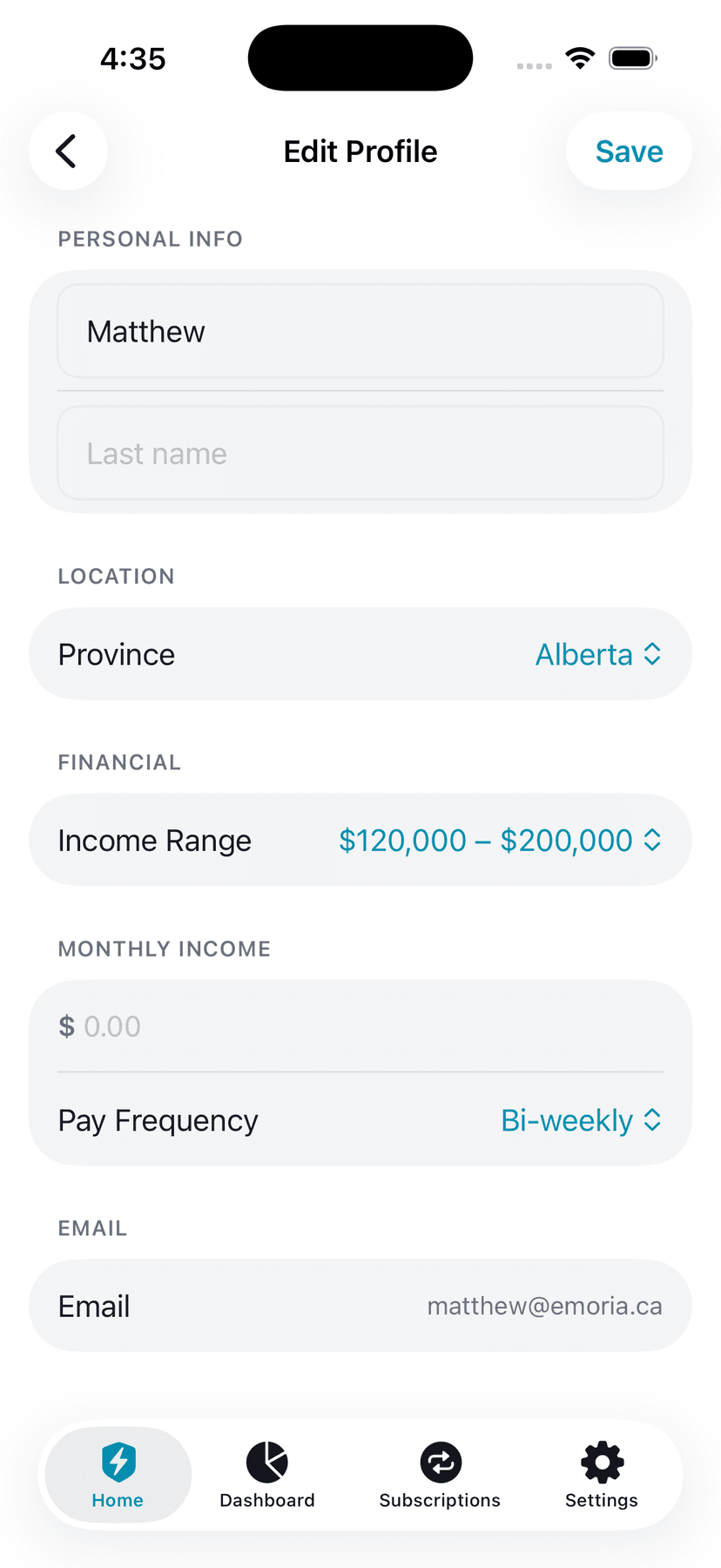
Additional Monthly Income
Below the primary income fields is an 'Additional Monthly Income' section for other income sources that don't fit a regular pay schedule — for example: side hustle earnings, rental income, child tax benefits, freelance work, or investment income. Enter the combined monthly total from all additional sources. Ghost adds this on top of your calculated pay-cheque income when computing your full monthly income for budgets, Ghost Score, and cash flow.
Tips
- ‣Leave Additional Monthly Income at $0 if you have no other income sources
- ‣Use the monthly equivalent for irregular income — e.g., if you earn $6,000/year from a side hustle, enter $500/month
- ‣Child tax benefits, CPP, OAS, and rental income all belong here
Enter what you receive each pay cheque. Ghost calculates your monthly total automatically.
Second Job
If you have more than one job, toggle 'I have more than one job' in the Second Job section of your profile. When enabled, a separate per-pay amount and pay frequency field appear for your second job. Ghost calculates the second job's monthly amount independently based on its own frequency, then combines both jobs plus your Additional Monthly Income for your full combined monthly total: Job 1 + Job 2 + Additional Income.
Tips
- ‣Each job has its own pay frequency — Job 1 could be bi-weekly, Job 2 could be weekly
- ‣Additional Monthly Income remains separate for non-employment income (side hustles, rental, child benefits)
- ‣The combined monthly total updates in real time as you enter amounts
19.2 Pay Days Section
The Pay Days section adapts to your selected pay frequency:
- Monthly — Pick your pay day (1st-31st of each month)
- Semi-monthly — Pick two pay days (e.g., 1st and 15th)
- Bi-weekly — Pick your next pay date; Ghost calculates all future dates
- Weekly — Pick your next pay date; Ghost calculates all future dates
For semi-monthly, if you pick the 31st and a month has only 28 days (February), Ghost automatically clamps it to the last day of that month.
19.3 Security & Biometrics
Face ID / Touch ID & PIN Management
Go to Settings > Security. You'll see your current biometric status (Face ID or Touch ID On/Off) and a toggle to enable/disable it. Below that is your PIN — you can reset your PIN or view PIN help. Ghost uses a 30-second grace period: if you switch to another app to reference information and return within 30 seconds, the app stays unlocked and you won't lose any data you were entering. After 30 seconds in the background, Face ID or PIN is required to unlock.
Tips
- ‣Face ID/Touch ID is optional but highly recommended for convenience
- ‣Your PIN is stored securely in the iOS Keychain — Ghost never sees it in plaintext
- ‣If you forget your PIN, you can reset it by signing out and back in
- ‣The 30-second grace period means you can safely switch apps to check amounts without losing your progress
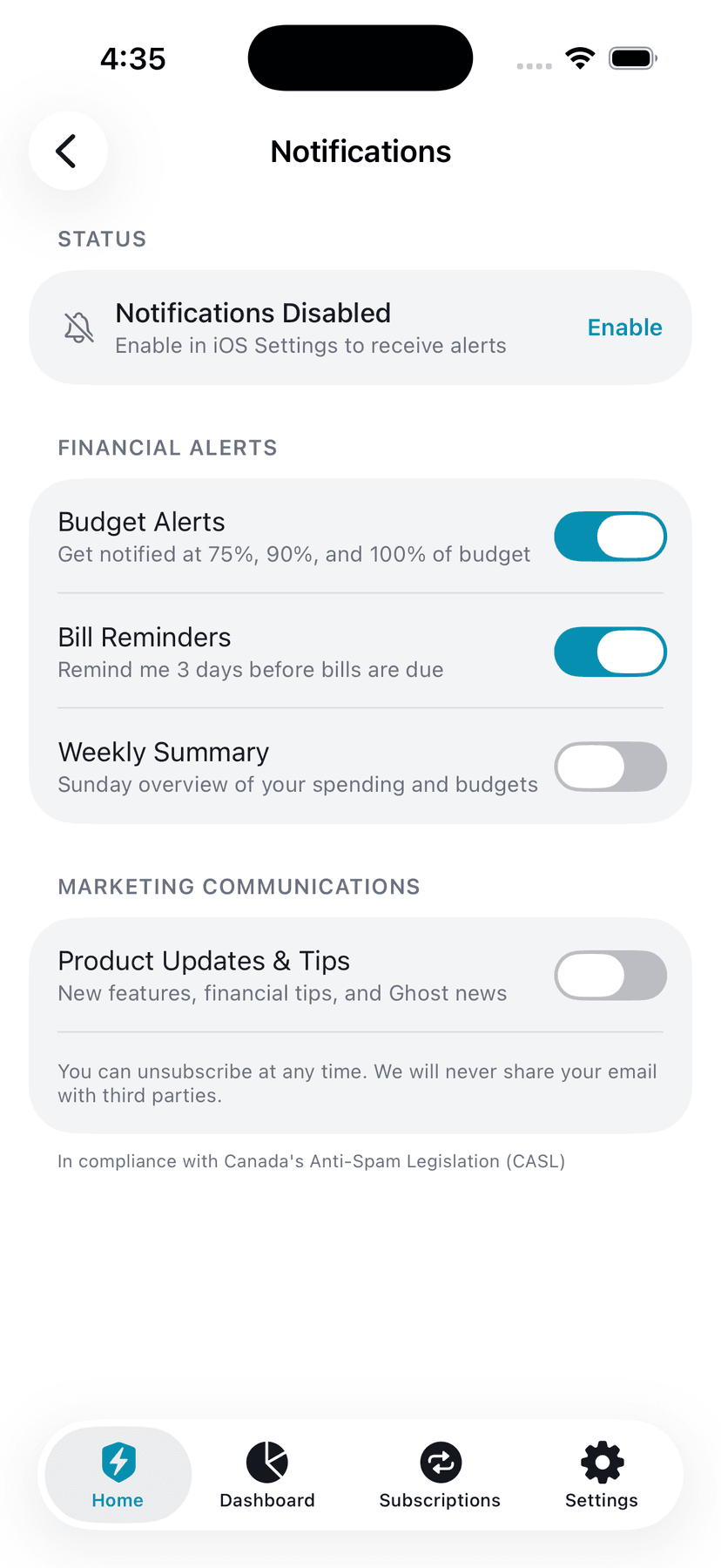
19.4 Notifications
Configure Alerts
Go to Settings > Notifications. Configure three types of financial alerts: Budget Alerts (get notified at 75%, 90%, and 100% of any budget), Bill Reminders (3 days before bills are due), and Weekly Summary (Sunday overview of your spending). There's also a separate Marketing Communications toggle for product updates and tips — this is never pre-checked (CASL compliant).
Tips
- ‣You need to enable iOS notifications first — the toggle at the top shows your current status
- ‣Budget alerts are the most useful — they prevent overspending surprises
- ‣Marketing communications can be toggled on/off anytime — your consent is logged
19.5 Subscription Management
Ghost Pro
The Subscription section shows your current plan status. Ghost Pro ($12.99/month or $99.99/year) unlocks bank linking, unlimited AI chat, loan analysis, detailed insights, family sharing, and more. Tap 'Upgrade to Ghost Pro' to subscribe via the App Store. You can also restore purchases if you previously subscribed on another device.
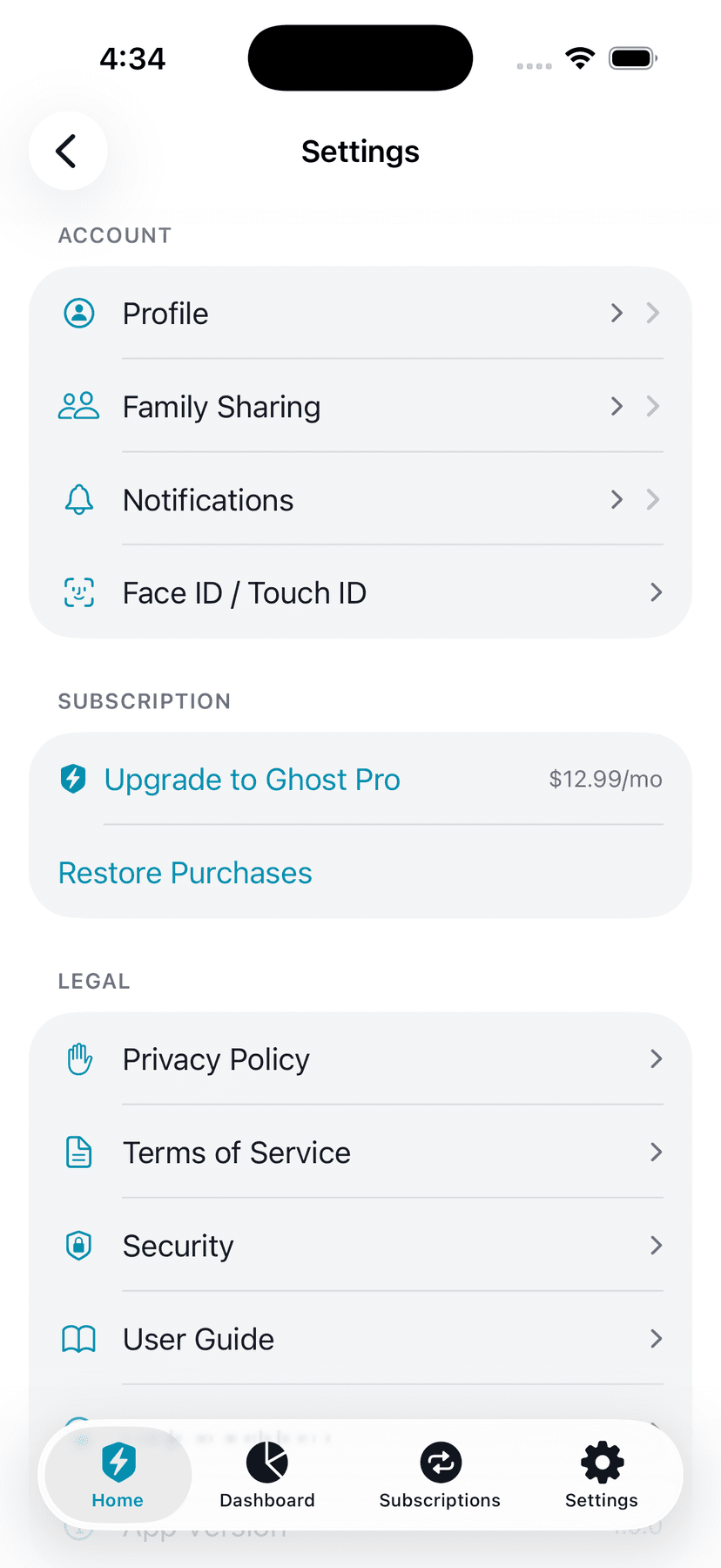
19.6 Legal & Support
Access Legal Documents and Help
The Legal section provides direct links to: Privacy Policy, Terms of Service, Security page, this User Guide, and Help & Support (FAQ + contact). The app version number is also displayed here.
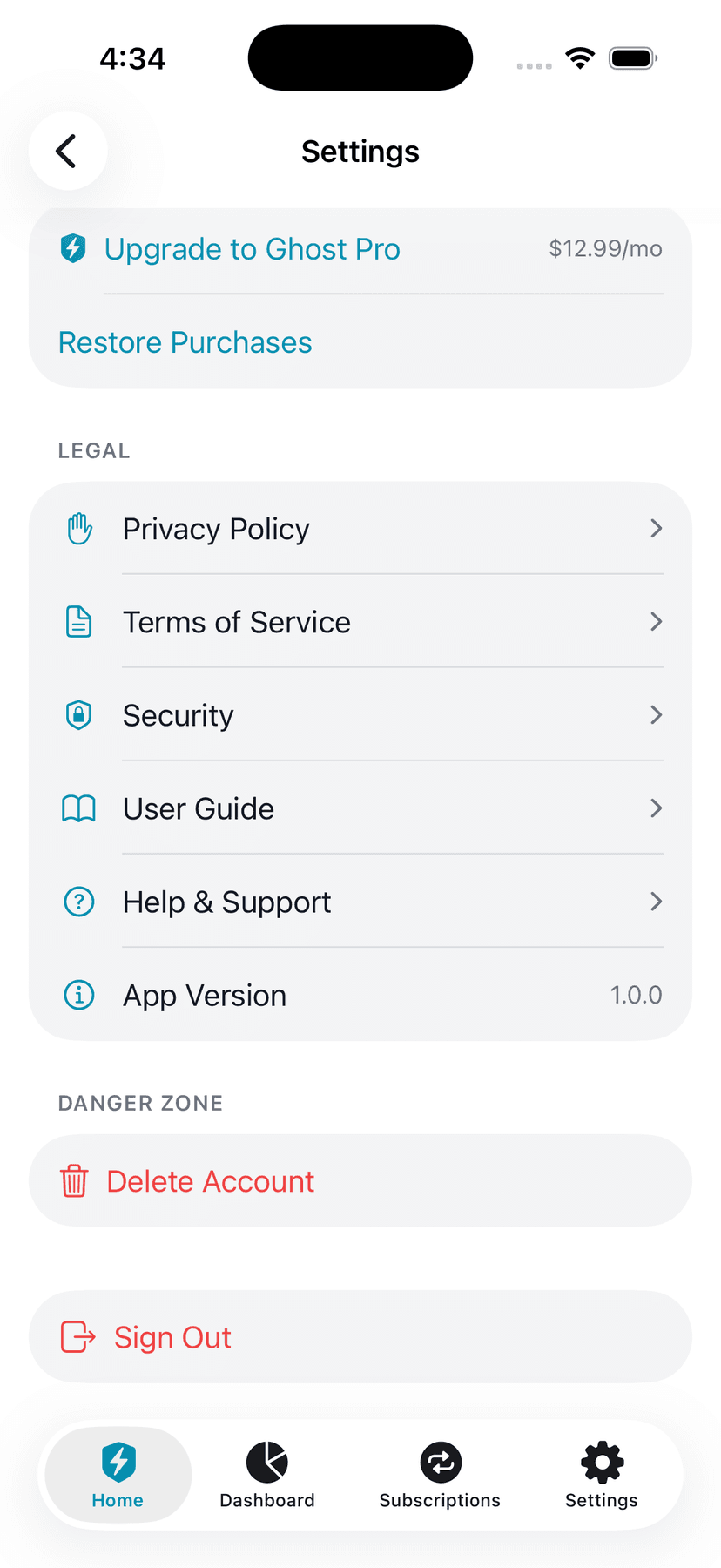
19.7 Account Management
At the bottom of Settings, you'll find two actions:
- Delete Account — Permanently deletes your account and all associated data. This action cannot be undone. Ghost will delete all your data within 30 days as required by Canadian privacy law (PIPEDA).
- Sign Out — Signs you out of the current session. Your data remains intact and you can sign back in anytime.
20. Security & Privacy
Ghost Financial handles sensitive financial data. Here's exactly how we protect it.
Read-Only Access
Ghost can never move your money. We have read-only access to view your accounts and transactions through Plaid — that's it. No payments, no transfers, no debits. Ever.
Bank Credentials
Your bank login credentials are never stored by Ghost Financial. They're handled entirely by Plaid, a SOC 2 Type II certified bank aggregation service used by over 12,000 financial apps. When you sign in to your bank through Plaid, the credentials go directly to Plaid's servers — Ghost never sees them.
Encryption
All data is encrypted in transit using TLS 1.2+ (the same encryption used by banks) and at rest using AES-256 encryption. Plaid access tokens are encrypted with AES-256-GCM before being stored in our database.
Canadian Data Residency
Your data is stored in Toronto, Canada on Supabase (AWS ca-central-1) and Fly.io (yyz region). Our API servers also run in Toronto. Note: Plaid stores some data on US servers, which is disclosed in our Privacy Policy as required by PIPEDA.
Row Level Security
Every database table uses PostgreSQL Row Level Security (RLS). This means even if there were a bug in our application code, the database itself prevents any user from accessing another user's data. It's the same isolation model used by enterprise SaaS platforms.
AI Privacy
Ghost AI conversations are processed by Anthropic (Claude). We send anonymized financial aggregates (e.g., total income, spending by category) — never raw bank account numbers, transaction details, or personal identifiers. AI chat history is automatically purged after 90 days. All AI interactions are logged in an audit trail for PIPEDA compliance.
PIPEDA Compliance
Ghost Financial complies with Canada's Personal Information Protection and Electronic Documents Act (PIPEDA) and Quebec's Law 25. You can request access to your data, correction of inaccurate data, or deletion of all your data at any time. Contact support@ghostfinancial.app for data requests — we respond within 30 days.
21. Troubleshooting
App asks for PIN every time it opens
Ghost uses a 30-second grace period. If you switch to another app and come back within 30 seconds, the app stays unlocked. After 30 seconds in the background, Face ID or PIN is required. If you want faster unlocking after the grace period, enable Face ID or Touch ID in Settings > Security — biometrics will authenticate you instantly.
Can't see family member's data
Make sure you're both in the same family group (check Family screen). Data syncs automatically when shared, but you must be in the same group. If your partner shared an account, check their Account settings to make sure the sharing toggle is ON. Shared data updates in real-time when either of you makes changes.
Recurring payment not showing on calendar
Check that the recurring payment is set to 'Active' — inactive ones don't show on the calendar. For weekly/bi-weekly payments, the calendar now correctly shows all occurrences in each month. For quarterly/annual payments, they only appear in the months they're actually due. Loans, lines of credit, and credit cards automatically create recurring payments when you add them with a minimum payment and due date. If you added a loan, LOC, or credit card before this feature was available, you'll need to manually create a recurring payment for it.
Balance shows wrong date
This is usually a timezone issue where your phone's timezone doesn't match your bank's. Ensure your iPhone's timezone is correct in Settings > General > Date & Time. Pull down on the Dashboard to refresh. The issue was fixed in recent updates.
Invite code not working
Codes expire after 24 hours. Ask your partner to generate a new code from Family > Create/Share Code. Also check you're entering the code exactly as provided (case-sensitive). If the error persists, try signing out and back in.
Budget toggle not saving in Family
Make sure you toggle the sharing option and wait for it to sync. Check your internet connection. If it still doesn't save, try signing out and back in to refresh your session.
Cash flow shows red (deficit)
Red means your fixed bills exceed your monthly income — this is a structural issue requiring attention. Review your recurring payments to identify which items can be reduced or eliminated. Contact support@ghostfinancial.app if you need help creating a debt payoff plan.
Semi-monthly pay days not showing
Make sure you selected semi-monthly pay frequency in Settings > Profile and picked both pay days. If you're still not seeing them, sign out and back in to refresh your session.
Credit card utilization bar missing
Enter your credit limit in the card details. The utilization bar only shows when a credit limit is set. Edit the card and enter the limit, then it will appear.
Loan balance seems wrong
Check your first payment date — Ghost uses this to calculate remaining balance. If you've made extra payments, toggle 'Made additional payments?' and enter the total extra amount. Edit the loan to verify all details are correct.
Ghost Score not showing
Set your monthly income in Settings > Profile first. The Ghost Score requires income to calculate the 50/30/20 ratio. Once you enter income, the score will appear on the Insights screen.
Can't delete transaction
Tap the transaction to edit it, then scroll down to the red 'Delete Transaction' button. You can also long-press the transaction in the list for a context menu with a delete option. A confirmation dialog appears before deletion.
Quick Add not saving
Check your internet connection — the transaction saves to our servers. If offline, it queues and syncs when you reconnect. If the problem persists, try signing out and back in.
Bank connection failed
If Plaid can't connect to your bank, make sure you're using your online banking credentials (not your debit card PIN). Complete any two-factor authentication prompts from your bank. Try disconnecting and reconnecting the account. Some banks experience temporary outages — try again in a few hours.
Transactions not showing up
Pull down on the Dashboard to refresh. Transactions may take 1-2 days to appear (banks have different posting schedules). Pending transactions may not sync until they're posted. Check that the correct account is linked in Accounts.
Budget shows wrong spending
Tap into the budget detail view to see which transactions are counted. Transactions are categorized automatically — some may be miscategorized. Check if a large pending transaction is inflating the number. Transfers between accounts may count as spending if not categorized as "Transfers".
Ghost AI not responding
Check your internet connection. AI responses take 5-15 seconds — wait for the typing indicator. If it fails, tap the pencil icon to start a new conversation. Ghost Pro subscribers get unlimited AI chat; free users have 5 messages/month.
CSV import not working
Make sure the file is a .csv or .txt file (not .xlsx or .pdf). The file should have a header row with column names like "Date", "Description", "Amount". Dates should be in a standard format (YYYY-MM-DD, MM/DD/YYYY, or DD/MM/YYYY). Amounts should be numbers without currency symbols. Try the Photo/Screenshot import as an alternative.
22. Frequently Asked Questions
Is Ghost Financial free?
Ghost Financial is free to download with core features (manual transaction entry, up to 5 budgets, basic insights). Ghost Pro ($12.99/month or $99.99/year) unlocks bank linking, unlimited AI chat, loan analysis, family sharing, detailed insights, and data export. A 7-day free trial is available.
Is my data safe?
Yes. Ghost uses bank-grade encryption (TLS 1.2+ in transit, AES-256 at rest), stores data in Canada (Toronto), and enforces Row Level Security on every database table. Your bank credentials are handled by Plaid — Ghost never sees or stores them. We comply with PIPEDA and Quebec Law 25.
Can Ghost move my money?
No. Ghost has read-only access only. We can see your accounts and transactions, but we can never make payments, transfers, or any changes to your accounts. This is enforced at the Plaid API level.
Which banks are supported?
Ghost supports all major Canadian banks via Plaid: TD, RBC, BMO, Scotiabank, CIBC, National Bank, Tangerine, EQ Bank, Desjardins, Simplii, and hundreds more. You can also import transactions from any bank using CSV export or photo scan.
Is Ghost AI financial advice?
No. Ghost AI provides general financial information and education. It is not a licensed financial advisor and its responses are not personalized investment, tax, or legal advice. Every AI response is labeled 'AI-generated — not financial advice'. Consult a qualified professional for specific advice.
How do I delete my account?
Go to Settings > Delete Account. This permanently deletes your account and all associated data within 30 days. This action cannot be undone. If you need assistance, contact support@ghostfinancial.app.
Can I use Ghost with my partner?
Yes! Ghost Financial has Family Sharing with privacy controls. Create a family group, invite your partner, and choose which accounts and budgets to share. Private items remain completely invisible to family members.
Does Ghost work outside Canada?
Ghost Financial is designed specifically for Canadians. It understands Canadian banks, TFSAs, RRSPs, FHSAs, Canadian tax brackets, and provincial differences. It is not currently available for use outside Canada.
How do I cancel Ghost Pro?
Ghost Pro is billed through the Apple App Store. To cancel: go to iPhone Settings > your name > Subscriptions > Ghost Financial > Cancel Subscription. You'll keep Pro access until the end of your current billing period.
What happens to my data if I cancel Pro?
Your data is never deleted when you cancel Pro. You keep all your transaction history, budgets, and documents. You just lose access to Pro features (bank linking, unlimited AI, etc.). If you re-subscribe, everything is still there.
How often do balances update?
Ghost syncs with your bank when you open the app and when you pull to refresh. Some banks update balances in real-time, others have a 1-2 day delay. The Dashboard shows when each account was last synced.
Can I recategorize a transaction?
Yes. Tap any transaction in the Transactions list or in a budget detail view to edit it. Change the category in the edit sheet — the transaction will instantly move to the new budget category and update all totals.
How do pay days work?
Set your pay frequency (weekly, bi-weekly, semi-monthly, monthly) and pay day(s) in Settings > Profile. Ghost uses these dates to populate the Payment Calendar, calculate cash flow, and project your low-point balance before the next pay day.
What happens if I pick the 31st for semi-monthly?
Ghost automatically adjusts to the last day of shorter months (e.g., Feb 28 or 29). This ensures your semi-monthly payments stay consistent and don't skip months.
Can I track US dollar accounts?
Ghost Financial is currently optimized for CAD. Multi-currency support is on the roadmap but not yet available. For now, you can track USD accounts but all calculations and budgets are in CAD.
How does the cash flow zone work?
The cash flow zone compares bills due before your next pay day against your available cash. If you'll go into overdraft before getting paid, the zone shows red. Green means you have healthy breathing room.
What is the Ghost Score?
A financial health rating (0-100) based on how closely your spending follows the 50/30/20 rule. 75+ = On Track, 50-74 = Needs Attention, below 50 = Off Track. It requires your monthly income to be set.
Can I export my data?
Yes, CSV export is available from the Home grid. You can export Transactions, Budgets, or Recurring Payments for any date range. Great for tax preparation and personal financial planning.
Does it support joint accounts?
Via Family Sharing, both members see shared accounts. All family members see each other's transactions, budgets, and recurring payments that are marked as shared.
How do I import transactions?
Three ways: (1) CSV export from your bank using Import > Import CSV, (2) Photo scan of a paper statement using Import > Scan Statement, (3) Link your bank directly via Accounts > Link Bank (requires Ghost Pro).
Can I create custom budget categories?
No, budget categories are pre-defined. However, you can create custom recurring payment categories with custom names and SF Symbol icons.
How do I add a loan and have it create a recurring payment?
When you add a loan with a monthly payment amount and billing cycle, Ghost automatically creates a corresponding recurring payment. You can edit or delete this entry independently.
What are the 18 built-in recurring payment categories?
Rent, Mortgage, Vehicle, Loan, Insurance, Utilities, Phone & Internet, Streaming, Music, Cloud Storage, Gaming, Fitness, News, Productivity, Food Delivery, Childcare, Membership, Other. Plus you can create custom categories.
Can I share individual budgets with family?
Yes. Each budget has its own sharing toggle. Some budgets can be shared while others remain private. Only shared budgets appear in the household combined totals.
Do I have to set a PIN?
Yes, PIN is mandatory for security during onboarding. It's your backup unlock method if Face ID/Touch ID fails. It's stored securely in the iOS Keychain.
How do I reset my PIN?
Sign out of Ghost completely, then sign back in with your email/password. You'll be prompted to set a new PIN during sign-in.
Still Need Help?
Our support team is here to help with any questions not covered in this guide.
Contact Supportsupport@ghostfinancial.app — Response time: 24-48 hours